





BREVIAN Sales Intelligence
Knowledge powered Sales Intelligence Platform
About
Brevian is an AI-driven sales intelligence platform that layers on top of Gong to help teams turn conversations into actionable insights. By combining Gong call data with CRM and enablement content, Brevian delivers cross deal insights, rep coaching grounded in your sales enablement, and instant meeting summaries and custom transcript workfows —all in one place. Teams get clearer visibility, faster prep, and smarter execution without changing their existing Gong workflow.
Media
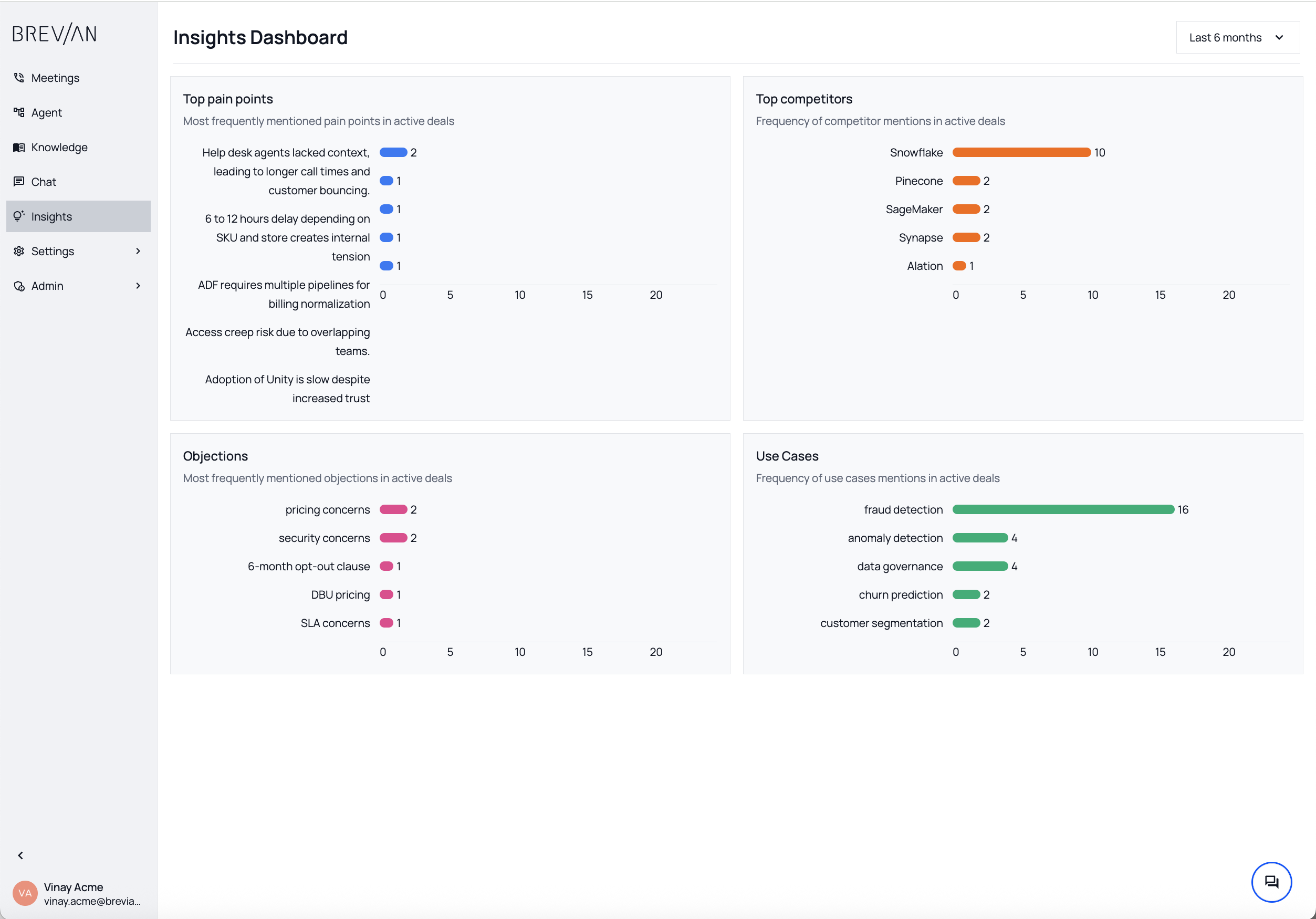
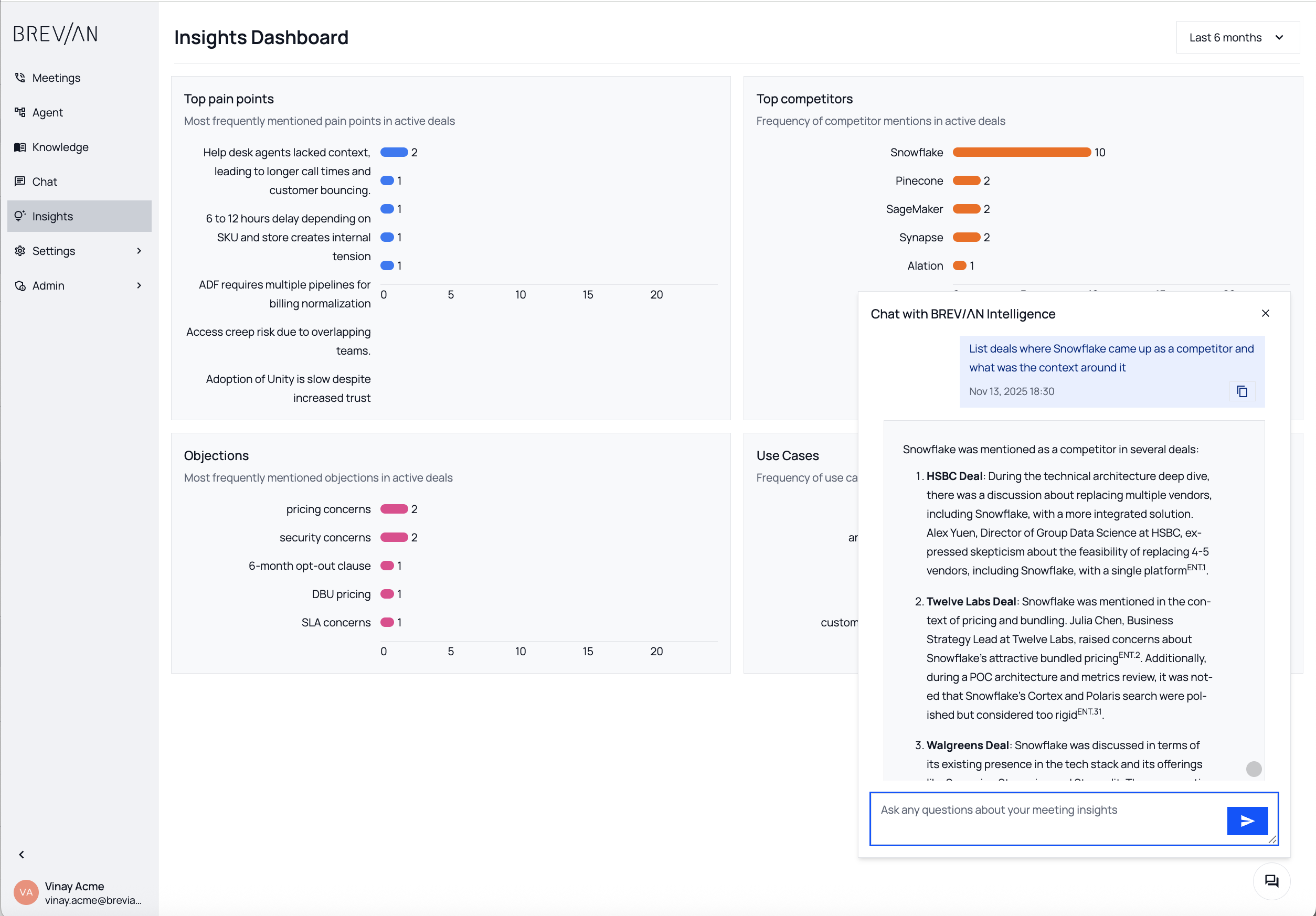
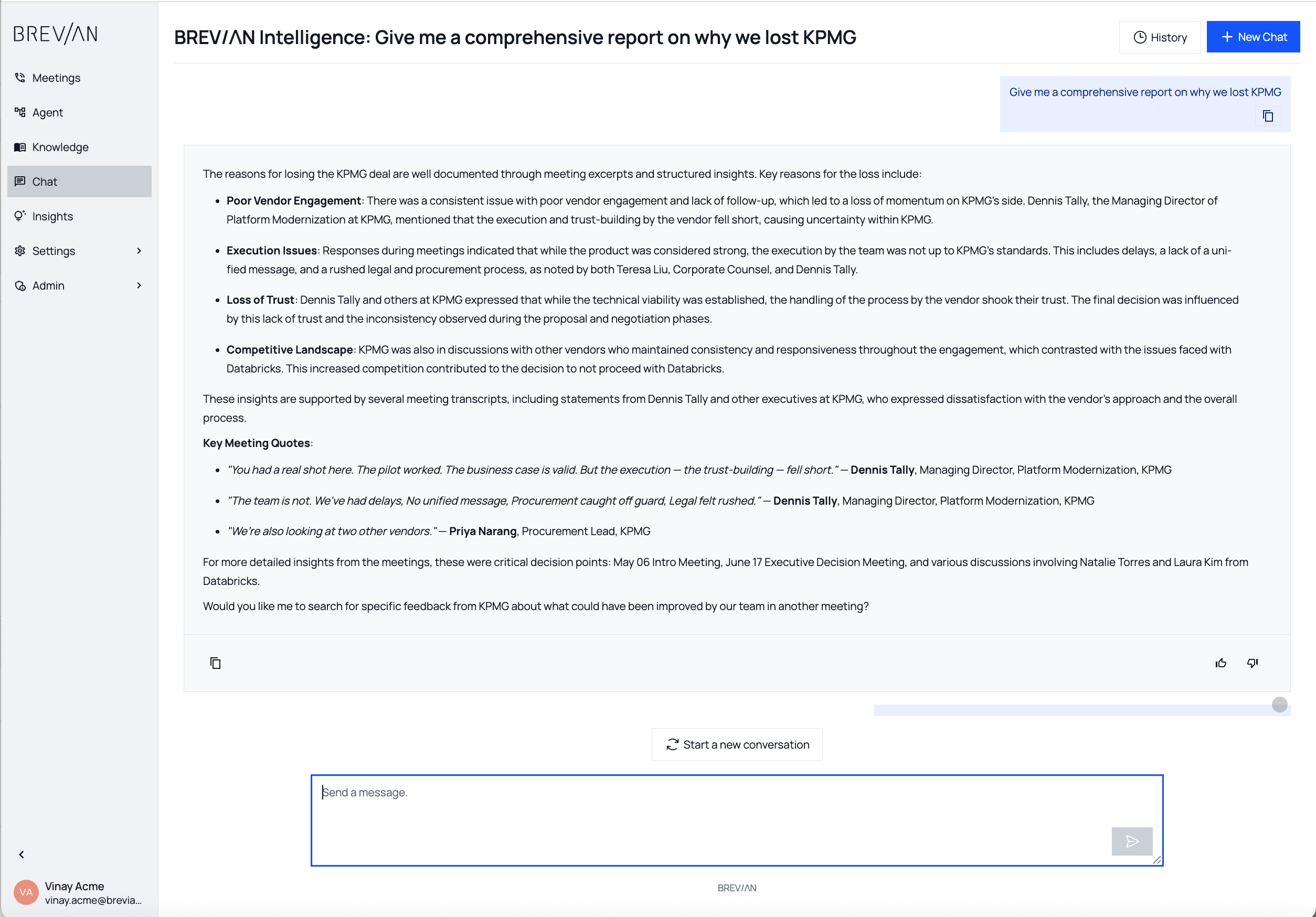
Features
Use Gong Data in Brevian
Use Gong Transcripts for AI insights across deals, coaching and more
Benefits
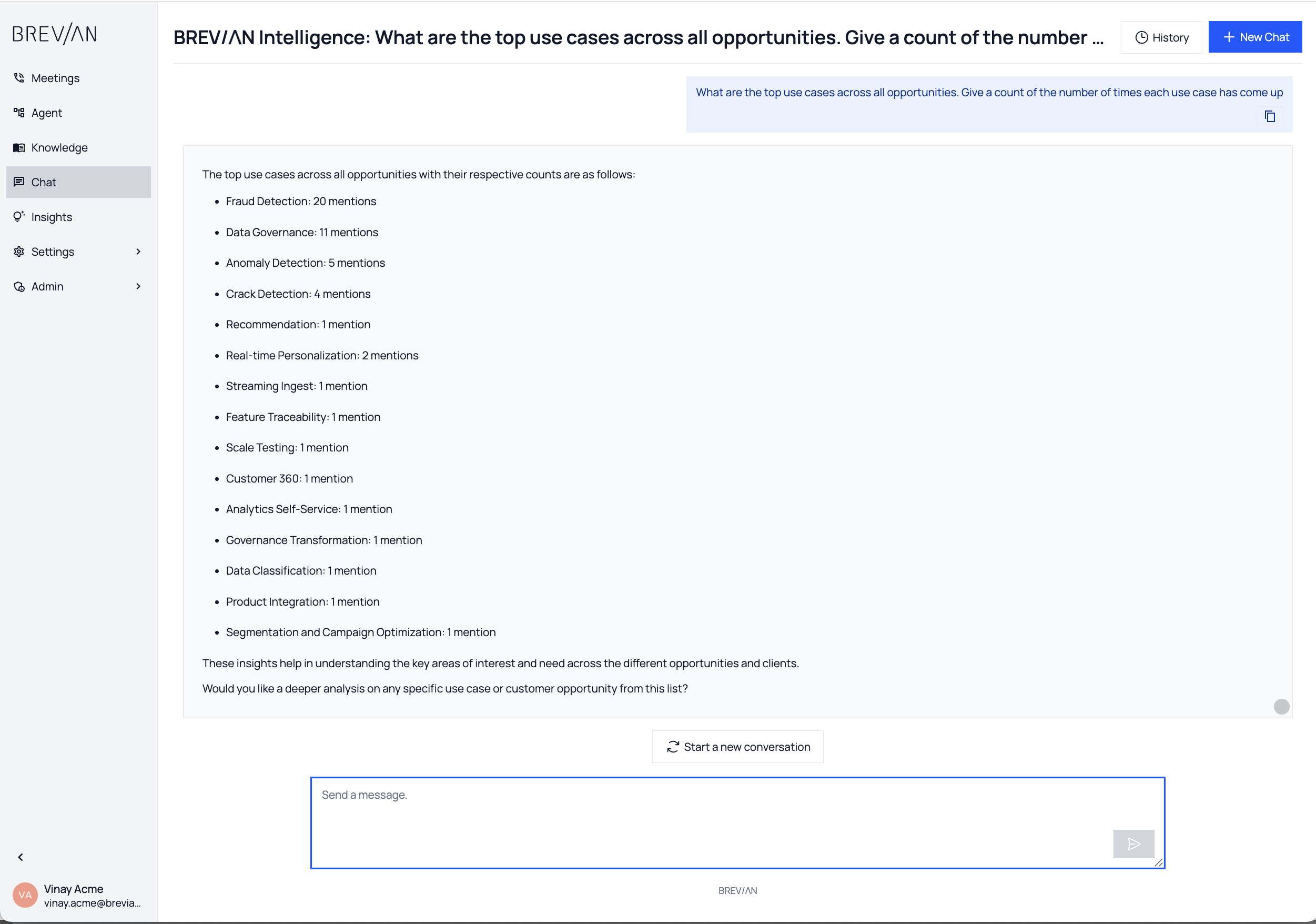
AI Insights
Brevian delivers insights and trends across deals and conversations
- Intuitive Chat interface
- Powered by Brevian's Knowledge Graph that combines CRM + Conversations + Sales Enablement
Coaching and Performance
Brevian helps reps get better with every call and saves managers time from reviewing calls
- Post call coaching on multiple dimensions including product knowledge
- Rep performance comparison to identify top rep behaviors
CRM Automation
Brevian automates updates to CRM
- Automatic derivation and updating of Call Summaries and Action Items
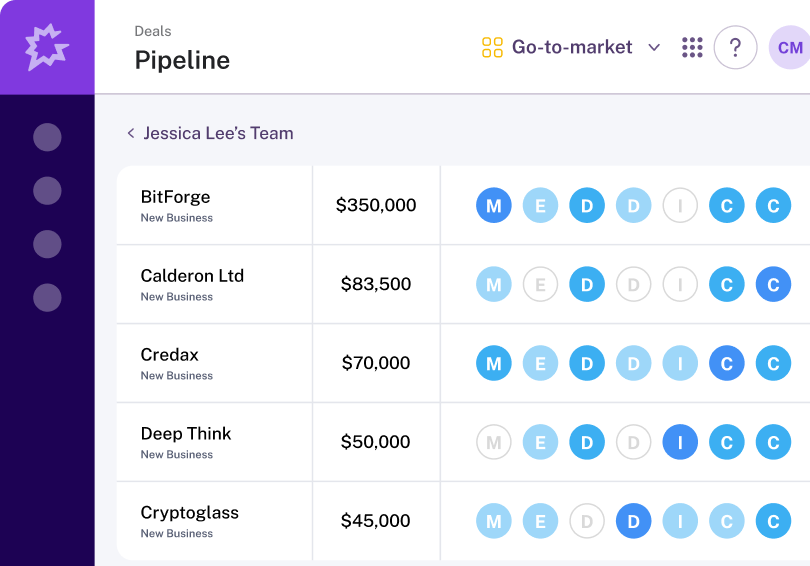
- Support multiple frameworks like MEDDPICC, MEDDIC etc
FAQ
1. What does this integration do?
This integration connects Brevian with Gong so that call and meeting data captured by Gong are surfaced in your Brevian environment. The goal is to:
- Automatically ingest recorded customer-facing calls and meetings from Gong into Brevian
- Enable Brevian to extract insights (e.g., key discussion points, objections, signals) based on those conversations
- Provide your sales and enablement teams with richer context in Brevian—so they can act faster, coach better, and close deals more predictably
2. Why would I want to enable it?
By integrating Gong + Brevian, you get benefits like:
- A unified view of customer conversations plus product/market knowledge inside Brevian
- Less manual effort: rather than manually exporting or uploading recordings, you get seamless ingestion
- Better adoption of your conversation intelligence: you ensure more of your calls are captured and leveraged
- Faster ramp and more consistent coaching: insights from actual calls feed into Brevian’s knowledge engine
3. What are the prerequisites?
To set this up smoothly you will likely need:
- A Gong account with admin or technical-admin permissions (so you can generate API keys or enable access)
- A Brevian account with appropriate permissions (typically an admin or integrations owner)
- The correct Gong workspace(s) identified for ingestion (so you know which calls are included)
- Consent/compliance protocols in place (recording calls, permissions, privacy)
- Potentially CRM or telephony integrations configured (depending on your setup)
4. How is the integration configured?
While the exact workflow may differ, the typical steps are:
- In Brevian: navigate to Settings → Integrations (or equivalent) and select Gong.
- In Gong: generate the required API key/access credentials or configure access for Brevian.
- In Brevian: enter/authenticate those credentials to link Gong.
- Choose import settings: e.g., which workspace(s) in Gong, which types of meetings (external vs internal), whether automatic ongoing ingestion or just one-time bulk import.
- Confirm mapping/configuration: what data flows (recordings, transcripts, metadata), how they map into Brevian (e.g., how participants are matched to users/contacts).
- Test the ingestion with one or two calls to confirm everything works.
5. What data from Gong is imported into Brevian?
Typical data flows include:
- Call recording and/or transcript from Gong
- Metadata: meeting title, date/time, participants, duration, external vs internal attendees
- Potentially key discussed topics or tags (if Gong captures those)
- In Brevian: this data becomes searchable, analyzable, and tied to the relevant account/deal/person so you can generate insights
6. How often does the sync occur?
Depending on your setup:
- You can choose bulk import (one-time or periodic batches of historical calls)
- You can set continuous ingestion, meaning new calls in Gong are automatically pulled into Brevian shortly after completion
- If you add new workspaces, participants, or settings in Gong, you may need to manually refresh sync settings in Brevian
7. Who gets access to what?
- Only users in Brevian with the proper permissions will see imported Gong data (you may configure which user roles can view/edit)
- Imported calls may be tied to specific accounts/deals so only relevant teams can access them
- If Gong workspace includes internal calls/non-customer calls you may want to filter them out so sensitive data isn’t broadly visible
8. What happens to participants from Gong calls that don’t match existing contacts/users?
- Typically, Brevian will attempt to match participants via email or user ID.
- If no match is found and if the setting allows, Brevian may create a new contact/person record (depending on your configuration) or simply import the call without creating new entities.
- It’s recommended to review mapping rules so you don’t get duplicate contacts or irrelevant records.
9. What happens if a call fails to import?
Common causes of failure may include:
- Missing or invalid API credentials/permissions
- The call is from a workspace or user not included in the ingestion scope
- The participant(s) don’t have valid email addresses or required metadata
If a call fails: review the ingestion logs in Brevian, check the Gong workspace settings, confirm the API access, and ensure the filtering rules (e.g., only external customer-facing meetings) are correct.
10. What about data privacy and security?
- Make sure your organization’s call-recording consent policies are in place for Gong.
- The integration inherits the security controls of both platforms—ensure only authorized users can access the imported recordings in Brevian.
- If your company has specific compliance needs (GDPR, HIPAA, etc.), verify that the data flow meets those requirements (storage, retention, access logging).
- Review where the recordings/transcripts are stored, how long they are retained, and who can export or share them.
11. Can we filter which calls get imported?
Yes. You can typically filter by:
- Workspace(s) in Gong (e.g., only the “Customer meetings” workspace)
- Meeting type (external vs internal)
- Duration or date range (e.g., only calls longer than X minutes, only calls after a certain date)
- Specific teams/users (e.g., only AEs in North America)
Ensure your filtration rules are configured before enabling continuous ingestion for best results.
12. Does this integration work with historical calls?
Yes. You can import historic recordings from Gong into Brevian (bulk import), though:
- Importing very large volumes (months/years of calls) might take longer and need staging.
- You may want to archive or mark older calls differently to avoid clutter.
- After bulk import, you can switch to continuous ingestion for future calls.
13. What about linking calls to the correct account or deal in Brevian?
- Make sure your CRM is integrated and/or call metadata includes account/deal information (e.g., via participants’ email domains or Gong’s deal associations).
- In Brevian, ensure your mapping rules align (e.g., email domain = company, deal ID = CRM field) so that calls are correctly attributed.
- Incorrect mapping can lead to orphan records or mis-attribution, so it’s best to test mapping rules early.
14. How can my team get started and train effectively?
- Kick off with a pilot: select a subset of calls/users to import and review how the insights appear in Brevian.
- Provide enablement/training on how to use the imported call data: e.g., how to search, generate insights, coach using specific calls.
- Define usage best practices: e.g., tagging important calls, using call-based learning, referencing call insights in deal reviews.
- Monitor and iterate: as the team uses the integration, capture feedback and refine filters, mapping, and usage.
15. Who should I contact if I encounter issues?
- For Gong side issues: check your Gong admin, workspace settings, API access, and call-recording settings.
- For Brevian side issues: contact your Brevian admin or support team.
- It’s also helpful to document logs (import errors, mismatches, missing participants) and escalate with both platforms, if necessary.
16. Can I disconnect or disable the integration later?
Yes. You can disable or disconnect the integration via the integrations/settings panel in Brevian. Once disconnected:
- New calls will no longer be imported from Gong
- Previously imported calls remain in Brevian unless manually removed
- If you plan to reconnect later, you may need to re-authenticate and re-configure the ingestion filters & mappings
17. What are the best practices for maximizing value?
- Ensure consistent call recording discipline in Gong (e.g., all customer-facing calls are recorded/transcribed)
- Set up the mapping and filtering rules thoughtfully so Brevian gets high-signal data (not internal chatter)
- Train your team to use call-derived insights in coaching, deal reviews, and strategy planning
- Periodically audit the imported call data: check for orphan records, duplicate contacts, mapping errors
- Combine call insights with Brevian’s other data sources (product knowledge, market signals, enablement assets) to drive richer conversation intelligence
Integration Diagrams
Integration instructions here
Data
Call recordings and Transcripts
Call recordings and Transcripts

Data
Knowledge Graph
Knowledge Graph
Requirements
Authenticating User Requirements
To authenticate and setup this integration for the first time, a user must be a Gong Tech Admin and have Admin permissions in Brevian
Subscriptions Required
Gong integration is available for all Brevian customers of every tier. Users should be customers of Gong and have an active Brevian Subscription.
Connect
- Go to the Brevian App, and go to Integrations under Admin section in the side drawer.
- The page will list all the supported integrations.
- Click on the + icon near to Gong.
- Copy the meeting callback URL.
- Log into your Gong account
- Go to Admin Centre in the drawer
- If the option is not available, you may not have admin access. Please contact the owner to get proper access.
- Click on Automation rules in the Ecosystem section
- To add new automation rule:
- Select New Call as Trigger
- (Optional) You can set filters for the trigger by clicking on the pencil ✏️ icon
- Choose Fire webhook as the Action
- Set the URL copied from step 3 as the callback URL
- Select Signed JWT header as the authentication method
- Click on Show public key and copy the public key
- Give an identifiable name and proper description to the rule
- Enable the rule and save the changes
- Go back to the Brevian App, paste the public key, and click on Setup with OAuth 2.0.
- Login and authorize Brevian.
- If the authorization succeeds, you should be able to see a green tick mark ✅ next to Gong in the integrations page
- Your meetings from last 3 months will be automatically imported to the Brevian App, and all the calls (that gets filtered in, if you’ve applied any filter) will also get imported as soon as they are finished.