






Highspot
Understand how buyers engage with shared content and leverage Gong calls for training
About
Highspot is a content management system that empowers teams to turn initiatives into action with shareable content and measured insights to determine what is and is not working in their content-strategy.
This integration allows users to see when Highspot content is shared and how buyers engage with it directly on Gong Activity Timelines and Deals Pages. Users may also upload Gong call recordings to Highspot for coaching and training.
Media

Features

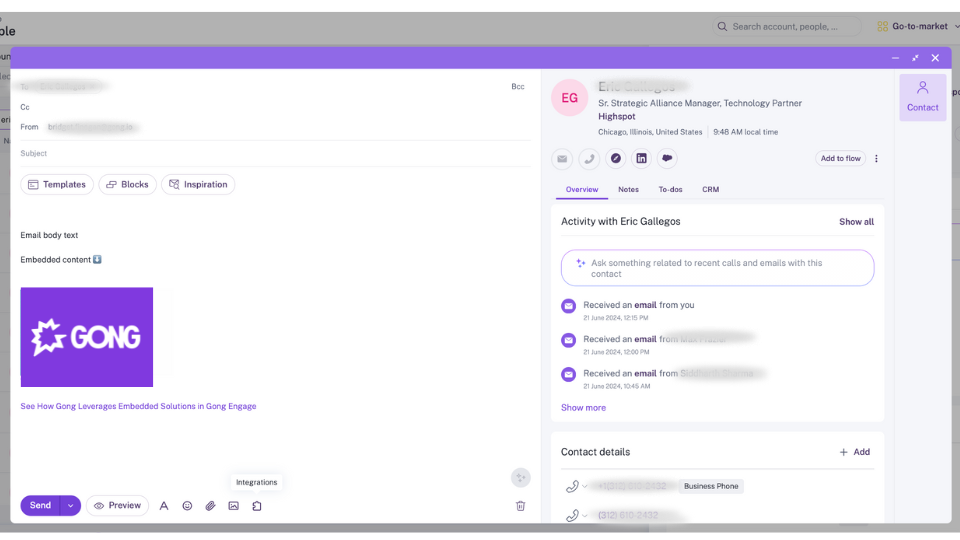
Insert Highspot Content from the Gong Email Composer
With Highspot directly in the Gong Engage Email Composer, your team can enjoy streamlined workflows and improved efficiency.
Push Highspot Events to Gong Activity Timelines
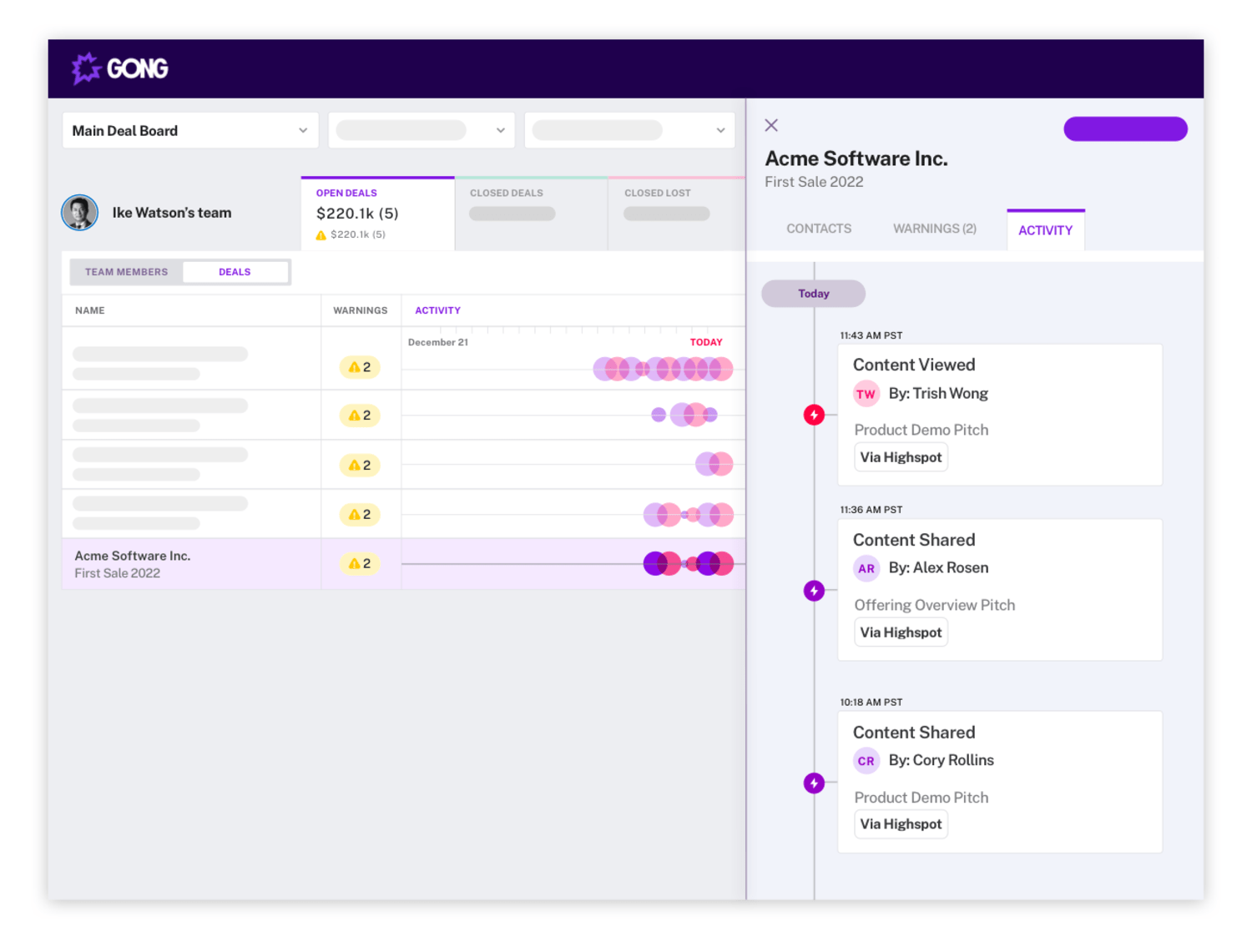
View Highspot pitch activity alongside other engagements - such as Gong calls, meetings and emails on Gong's Activity Timeline.
With a more complete view of buyer activity, users gain insight faster to accelerate buyer decisions.
With a more complete view of buyer activity, users gain insight faster to accelerate buyer decisions.

Embed Gong Calls in Highspot
Upload Gong calls in Highspot training courses, sales plays and other content to reinforce desired behaviors at scale by providing real life examples of what “good” looks like - helping to increase win rates and close deals faster.
FAQ
If your company connected the Highspot integration before the Email Composer feature was released in August 2024, a tech admin will need to disconnect, then reconnect to authenticate the additional scope. This can be done from Highspot.
Once the new scope is authenticated, no further action is required and the Highspot logo should appear in integrations on the Gong Email Composer.
Note: This feature is available to Gong Engage customers only.
Once the new scope is authenticated, no further action is required and the Highspot logo should appear in integrations on the Gong Email Composer.
Note: This feature is available to Gong Engage customers only.
Integration Diagrams
Data
Gong
Gong

Data
Highspot
Highspot
Connect
1. In Highspot, go to User Menu > Settings > Company Settings > Your Company > Cloud Services > Gong
2. Slide the Enable option to On/Green
3. Click Link Account
4. Click Link on the dialog box informing you that a new page will open to help you link your Gong account
5. Log in to your Technical Administrator Gong account to link it to Highspot
6. Once you have successfully logged in to Gong, a “Connected” message appears in Highspot
2. Slide the Enable option to On/Green
3. Click Link Account
4. Click Link on the dialog box informing you that a new page will open to help you link your Gong account
5. Log in to your Technical Administrator Gong account to link it to Highspot
6. Once you have successfully logged in to Gong, a “Connected” message appears in Highspot