





Lightfield
Lightfield is reimagining CRM as a world model of a business.
About
Lightfield is reimagining CRM as a world model of a business. By learning from emails, meetings, and customer conversations, we’re building a living understanding of how a company works—so AI can help teams anticipate what comes next, make better decisions, and take action.
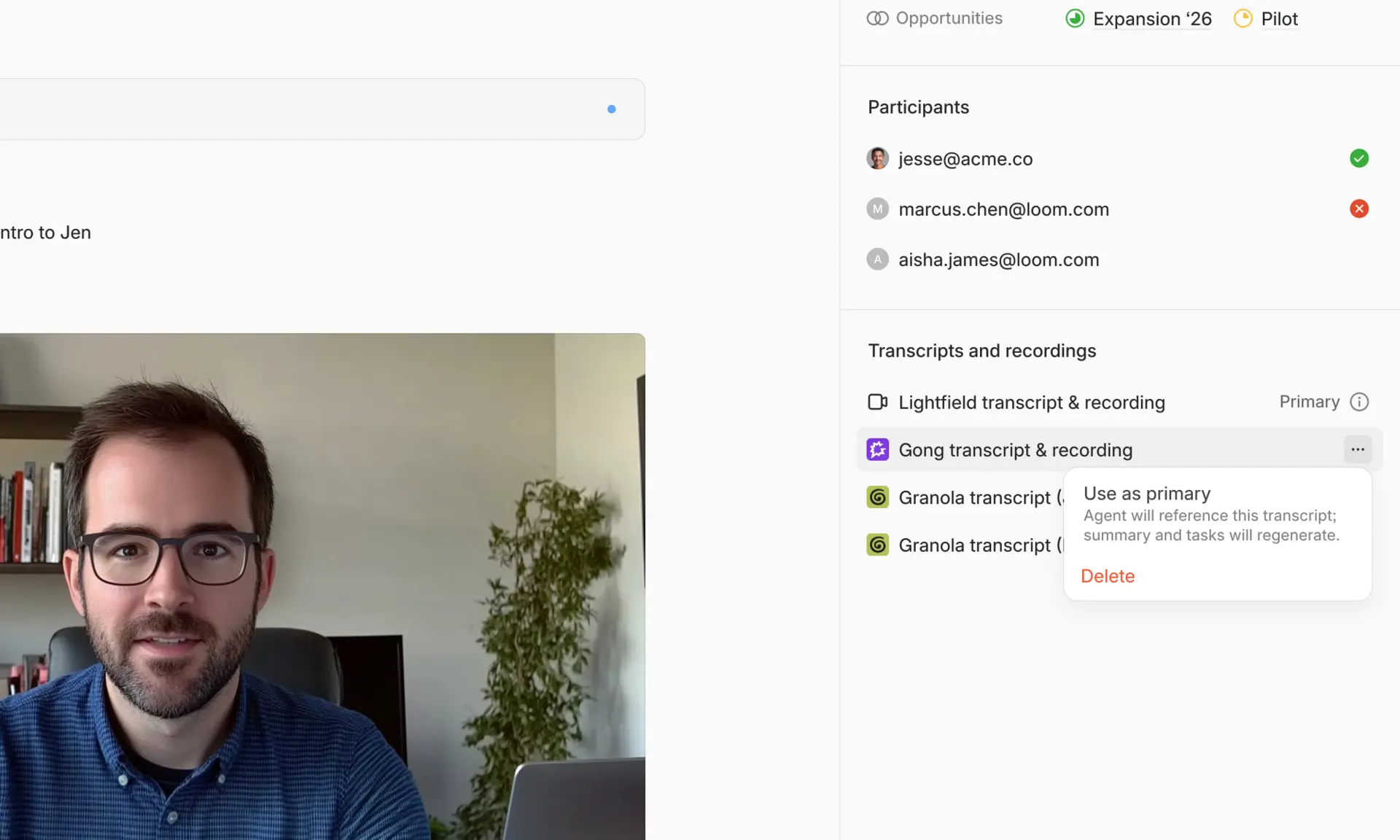
Connect your Gong workspace with Lightfield workspace to bring Gong calls to Lightfield and have recordings and transcripts linked to existing meetings.
Connect your Gong workspace with Lightfield workspace to bring Gong calls to Lightfield and have recordings and transcripts linked to existing meetings.
Media
Features
Use Gong Data in Lightfield
Select a Gong workspace to connect to Lightfield. Lightfield will link Gong recordings and transcripts in that workspace to existing meetings so agents can use them as context to update your meeting summary, suggested tasks, and more.
Benefits
Automatic call sync
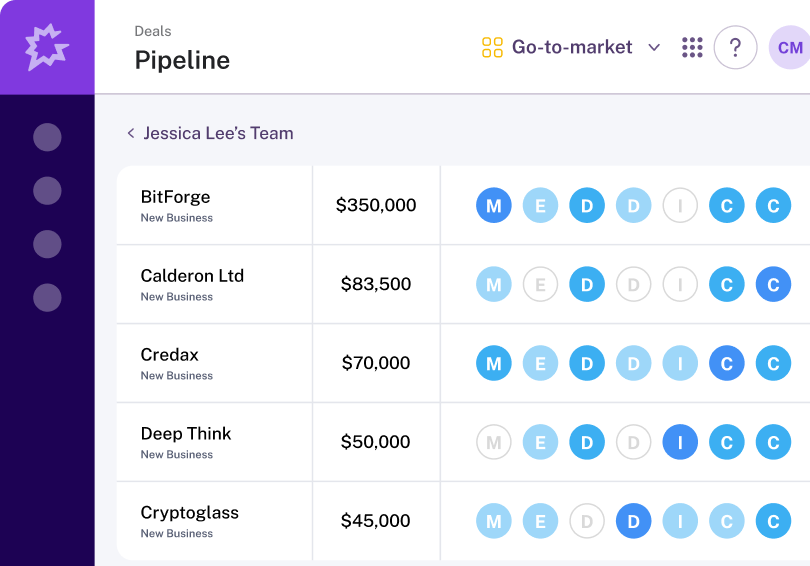
Once connected, Lightfield pulls in your Gong calls, starting with a backfill of past calls over a range you choose, up to 2 years. New calls keep syncing after that.
Transcripts and video in one place
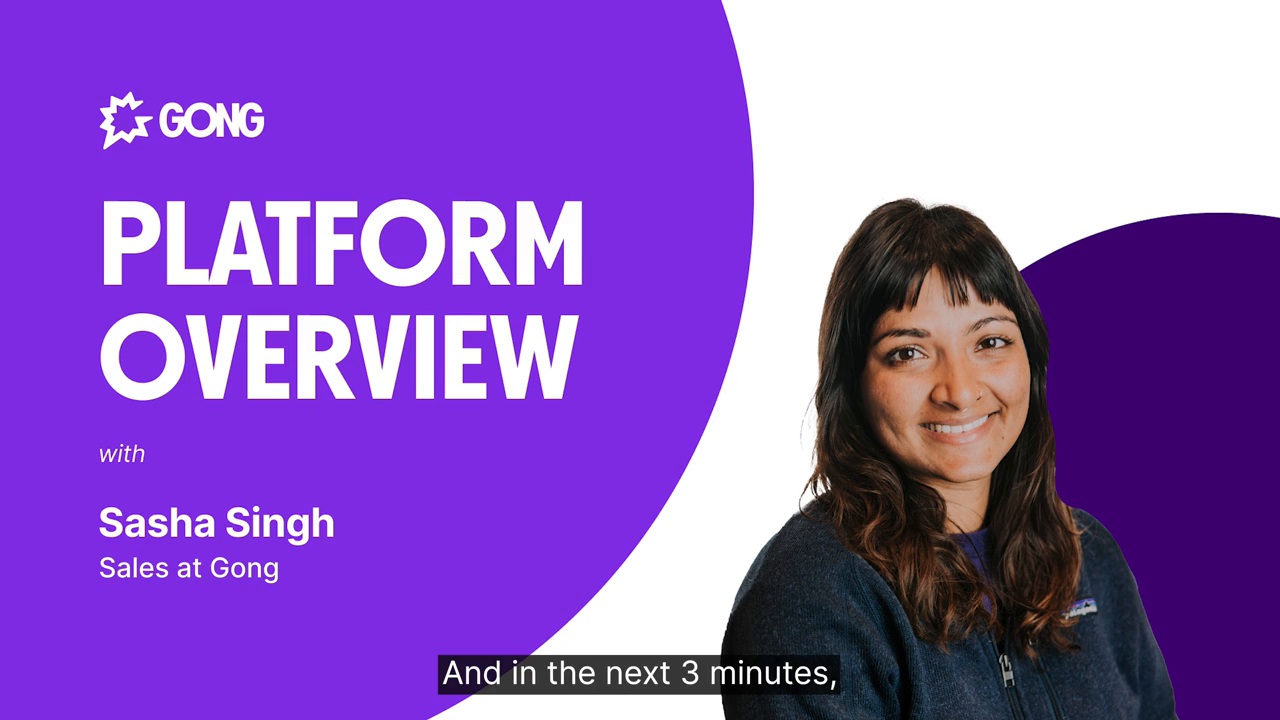
You can read the full Gong transcript and watch the call recording without leaving Lightfield.
AI that knows what was said
Lightfield's AI uses Gong transcripts to update records and answer questions about your customers, grounded in what was actually said on the call.
FAQ
Gong recordings only attach to existing Lightfield meetings. Confirm the meeting exists in Lightfield and that an admin has connected Gong in Settings → Integrations. Lightfield also only back syncs within the range chosen at connection time.
Disconnect Gong and reconnect, then choose the workspace you want. To change workspace, you need to reconnect Gong manually.
Setting changes take effect immediately and are not applied retroactively. Changing the range won’t remove recordings that are already attached. It only affects what Lightfield imports going forward.
Integration Diagrams
Data
Gong Call Data
Gong Call Data

Data
Transcript & Video
Transcript & Video
Requirements
Subscriptions Required
Must have Lightfield subscription
Must have Gong subscription
Must have Gong subscription
Authenticating User Requirements
To authenticate this integration for the first time, a user must be a Gong Tech Admin and have admin permissions in Lightfield.
Connect
You must be an admin in both Gong and Lightfield.
- In Lightfield, go to Settings → Integrations and find Gong.
- Click Connect.
- Approve the requested permissions in Gong.
- Choose the workspace to sync from. Only recordings and transcripts from that workspace will be available in Lightfield.
- Choose a back sync range. You can choose to sync transcripts and recordings from up to two years ago.
- When you return to Lightfield, Gong shows as Connected.