






Magi
Magi is an AI marketing platform for B2B teams. Use AI agents, marketing automation, and AI content creation to launch on-brand campaigns faster and drive more revenue at the speed of business. Start for free today.
About
Magi is an AI marketing platform where teams plan, create, and publish content. This integration brings your Gong calls into Magi so that every campaign is grounded in what customers actually said, rather than in guesswork.
Once Gong is connected, you can browse your recorded calls inside Magi and add any of them to your knowledge base. Magi imports the call as a single structured document containing:
Once Gong is connected, you can browse your recorded calls inside Magi and add any of them to your knowledge base. Magi imports the call as a single structured document containing:
- Attendees, split between the customer and your team
- The linked CRM account and opportunity
- Gong's AI summary, key points and call outcome
- Tracker mentions, with counts and who said them
- Time spent on each topic
- The full transcript, attributed by speaker
Your Magi AI agents then use those documents when producing content ideas, briefs and drafts, so the language you publish reflects the language your buyers use.
Prefer not to pick calls one at a time? Turn on automatic import and every new call is added on its own, using the same read-only path.
The integration is strictly read only. Magi never creates, modifies, or deletes anything in Gong. Credentials are stored separately for each Magi workspace, and a call is only ever imported when someone explicitly chooses it or switches on automatic import.
Media
Features
Add any call in one click
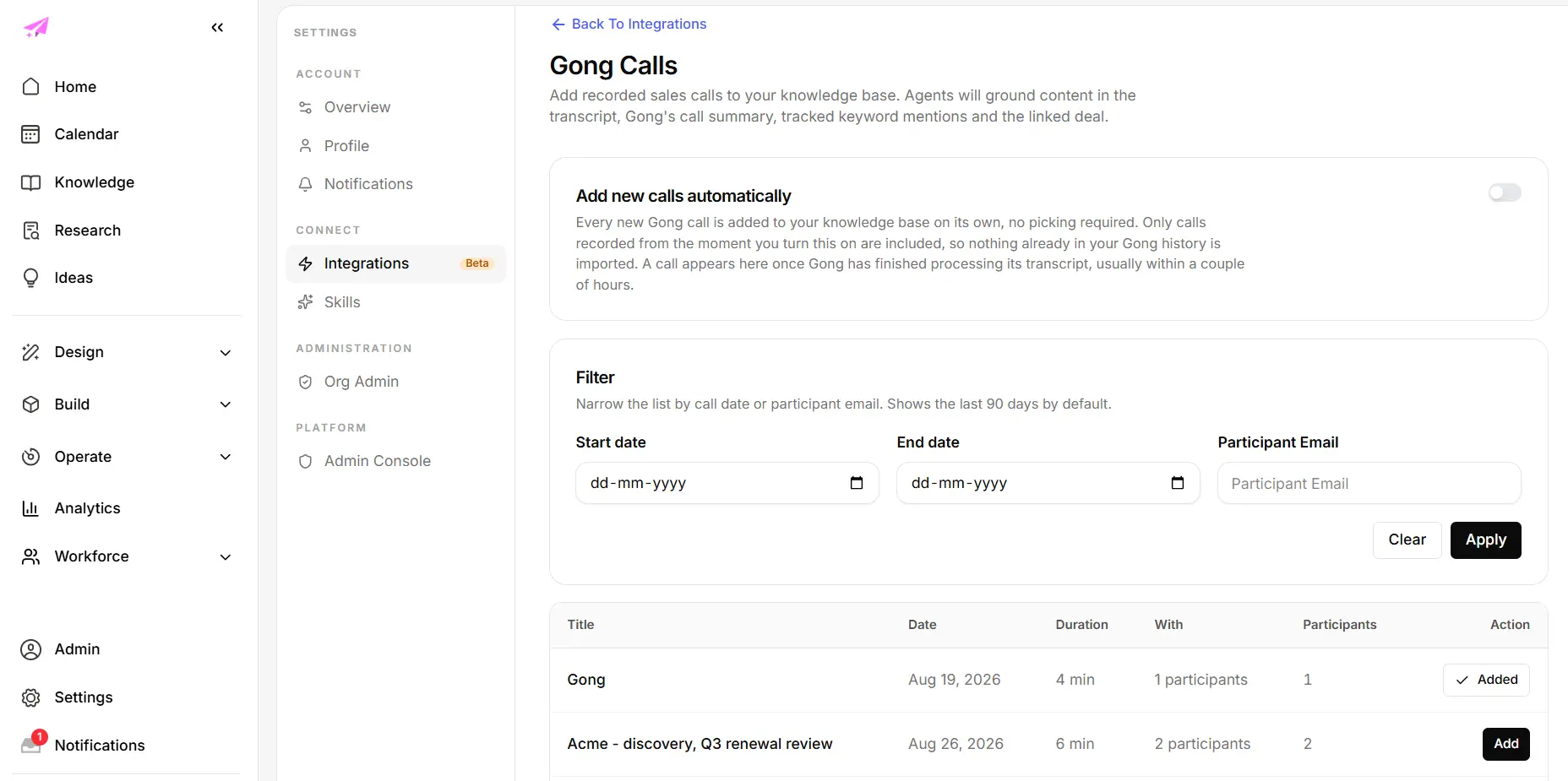
Manual import is the default: browse your recorded Gong calls without leaving Magi, filter by date or participant, and add any call to your knowledge base in one click. Nothing is imported unless you select it, and automatic import stays off until you choose to turn it on. Calls already imported are marked, so you always know what is there.
Import new calls automatically
Switch on automatic import and every new Gong call is added on its own, no picking required. Only calls recorded from the moment you turn it on are included, so nothing already in your Gong history is imported. Turn it off whenever you like.
The whole call, not just the transcript
Each imported call becomes one structured document containing the attendees, the linked CRM account and opportunity, Gong's AI summary, key points and outcome, tracker mentions with counts, time spent on each topic, and the full speaker-attributed transcript.
Content grounded in what customers actually said
Magi's AI agents draw on imported calls when producing content ideas, briefs and drafts. The result is marketing that reflects the language your buyers use, their objections and their priorities, rather than assumptions about them.
Benefits
Marketing that sounds like your customers
Your buyers describe their problems in their own words on every sales call. When those calls sit in Magi, that language reaches the people writing your campaigns, so the copy matches how customers actually talk instead of how the company talks about itself.
Close the gap between sales and marketing
Marketers rarely sit on sales calls, so the objections, competitor mentions and questions that come up every week never reach them. Importing calls into the knowledge base gives marketing the same picture sales already has, without anyone writing a summary.
No manual work once it is on
Switch on automatic import and new calls arrive on their own. There is nothing to export, no files to move and no weekly ritual to keep up. The knowledge your agents draw on stays current by default.
FAQ
A Magi workspace connects to Gong using OAuth 2.0. The customer approves five read-only permissions in Gong, and Magi stores the resulting credentials against that workspace only. Tokens are never shared between workspaces and are refreshed automatically, so the connection keeps working without anyone re-authorizing it.
Once connected, Magi reads calls in two ways. A user can browse their calls in Magi and add any one of them by hand, or they can switch on automatic import, which picks up new calls as they are recorded. Both routes use the same read-only path. Magi waits until Gong has finished processing a call's transcript before importing it, so a call is never stored half complete.
For each call, Magi retrieves the call detail and the transcript, then renders them into a single structured document: attendees split between the customer and the seller's team, the linked CRM account and opportunity, Gong's AI summary, key points and call outcome, tracker mentions with counts, time spent per topic, and the full speaker-attributed transcript. That document is stored in the workspace's knowledge base, where Magi's AI agents use it when producing content ideas, briefs and drafts.
The integration is read only throughout. Magi requests no write scope and never creates, modifies or deletes anything in Gong. A call is only imported when a user explicitly selects it or turns on automatic import, imported documents can be deleted by the user at any time, and disconnecting the integration revokes Magi's access to Gong.
Once connected, Magi reads calls in two ways. A user can browse their calls in Magi and add any one of them by hand, or they can switch on automatic import, which picks up new calls as they are recorded. Both routes use the same read-only path. Magi waits until Gong has finished processing a call's transcript before importing it, so a call is never stored half complete.
For each call, Magi retrieves the call detail and the transcript, then renders them into a single structured document: attendees split between the customer and the seller's team, the linked CRM account and opportunity, Gong's AI summary, key points and call outcome, tracker mentions with counts, time spent per topic, and the full speaker-attributed transcript. That document is stored in the workspace's knowledge base, where Magi's AI agents use it when producing content ideas, briefs and drafts.
The integration is read only throughout. Magi requests no write scope and never creates, modifies or deletes anything in Gong. A call is only imported when a user explicitly selects it or turns on automatic import, imported documents can be deleted by the user at any time, and disconnecting the integration revokes Magi's access to Gong.
No. The integration is read only. Magi requests five read-only permissions and no write access, and it never creates, modifies or deletes anything in Gong.
Magi reads calls through the authorization granted by the Gong Technical Administrator, within the read-only scopes approved. A call is only brought into Magi when someone in the workspace imports it, or when automatic import is on, and imported calls stay within that workspace.
No. Imported calls belong to the workspace they were imported into, and credentials are stored separately for each workspace.
No. Only calls recorded from the moment you switch it on are included. Anything already in your Gong history stays where it is, and you can still add those calls by hand.
They stay in your knowledge base. Disconnecting stops Magi accessing Gong going forward, it does not delete anything already imported. You can delete those calls yourself at any time from the Knowledge section, whether Gong is connected or not.
Integration Diagrams
A Magi workspace connects to Gong using OAuth 2.0. The customer approves five read-only permissions in Gong, and Magi stores the resulting credentials against that workspace only. Tokens are never shared between workspaces and are refreshed automatically, so the connection keeps working without anyone re-authorizing it.
Once connected, Magi reads calls in two ways. A user can browse their calls in Magi and add any one of them by hand, or they can switch on automatic import, which picks up new calls as they are recorded. Both routes use the same read-only path. Magi waits until Gong has finished processing a call's transcript before importing it, so a call is never stored half complete.
For each call, Magi retrieves the call detail and the transcript, then renders them into a single structured document: attendees split between the customer and the seller's team, the linked CRM account and opportunity, Gong's AI summary, key points and call outcome, tracker mentions with counts, time spent per topic, and the full speaker-attributed transcript. That document is stored in the workspace's knowledge base, where Magi's AI agents use it when producing content ideas, briefs and drafts.
The integration is read only throughout. Magi requests no write scope and never creates, modifies or deletes anything in Gong. A call is only imported when a user explicitly selects it or turns on automatic import, imported documents can be deleted by the user at any time, and disconnecting the integration revokes Magi's access to Gong.
Once connected, Magi reads calls in two ways. A user can browse their calls in Magi and add any one of them by hand, or they can switch on automatic import, which picks up new calls as they are recorded. Both routes use the same read-only path. Magi waits until Gong has finished processing a call's transcript before importing it, so a call is never stored half complete.
For each call, Magi retrieves the call detail and the transcript, then renders them into a single structured document: attendees split between the customer and the seller's team, the linked CRM account and opportunity, Gong's AI summary, key points and call outcome, tracker mentions with counts, time spent per topic, and the full speaker-attributed transcript. That document is stored in the workspace's knowledge base, where Magi's AI agents use it when producing content ideas, briefs and drafts.
The integration is read only throughout. Magi requests no write scope and never creates, modifies or deletes anything in Gong. A call is only imported when a user explicitly selects it or turns on automatic import, imported documents can be deleted by the user at any time, and disconnecting the integration revokes Magi's access to Gong.
Data
Call Data
Call Data

Data
Knowledge Document
Knowledge Document
Requirements
Subscriptions Required
- Requires an active Magi subscription. The Gong integration is included on every Magi plan at no additional cost.
- No particular Gong subscription tier is required.
- No separate or add-on subscription is needed to connect or use the integration.
Authenticating User Requirements
- To authenticate this integration for the first time, a user must be a Gong Tech Admin.
- No special Magi role is required. Any user in a Magi workspace can connect Gong for that workspace.
- Magi connects through the Technical Administrator's one-time authorization; it does not authenticate individual Gong users or use user-level OAuth.
- Each Magi workspace connects to Gong separately, so connecting one workspace does not affect any other.
Connect
Connecting takes about a minute.
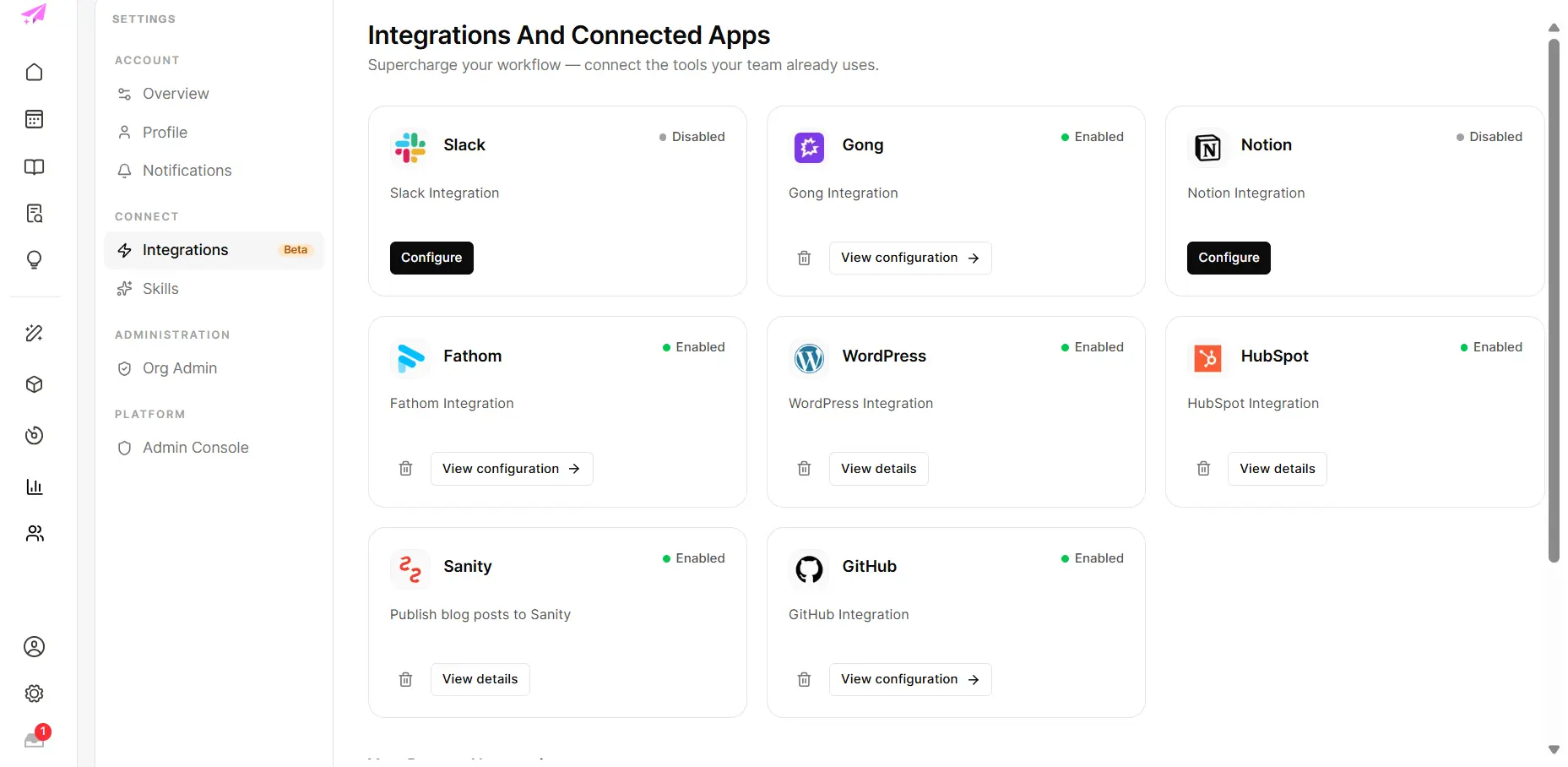
1. In Magi, go to Settings, then Integrations.
2. Find the Gong card and click Configure.
3. Click Connect. You will be sent to Gong to review the permissions Magi is asking for.
4. Approve the request in Gong.
5. You land back in Magi and the Gong card shows as connected.
You will need a Gong account with permission to authorize apps, and the Manage integrations permission in Magi.
Each Magi workspace connects to Gong separately, so connecting one workspace has no effect on any other.
Magi asks for five read-only permissions: read calls, read call details, read transcripts, read users, and read workspaces. It requests no write access of any kind.
To stop the connection at any time, open Settings, then Integrations, and click Disconnect on the Gong card. Calls you already imported stay in your knowledge base, and you can delete any of them yourself from the Knowledge section.
1. In Magi, go to Settings, then Integrations.
2. Find the Gong card and click Configure.
3. Click Connect. You will be sent to Gong to review the permissions Magi is asking for.
4. Approve the request in Gong.
5. You land back in Magi and the Gong card shows as connected.
You will need a Gong account with permission to authorize apps, and the Manage integrations permission in Magi.
Each Magi workspace connects to Gong separately, so connecting one workspace has no effect on any other.
Magi asks for five read-only permissions: read calls, read call details, read transcripts, read users, and read workspaces. It requests no write access of any kind.
To stop the connection at any time, open Settings, then Integrations, and click Disconnect on the Gong card. Calls you already imported stay in your knowledge base, and you can delete any of them yourself from the Knowledge section.