





OptyStack AI
OptyStack helps IT and finance teams discover unused licenses, shadow IT, and wasted SaaS spend. Free to start. See savings in under 10 minutes.
About
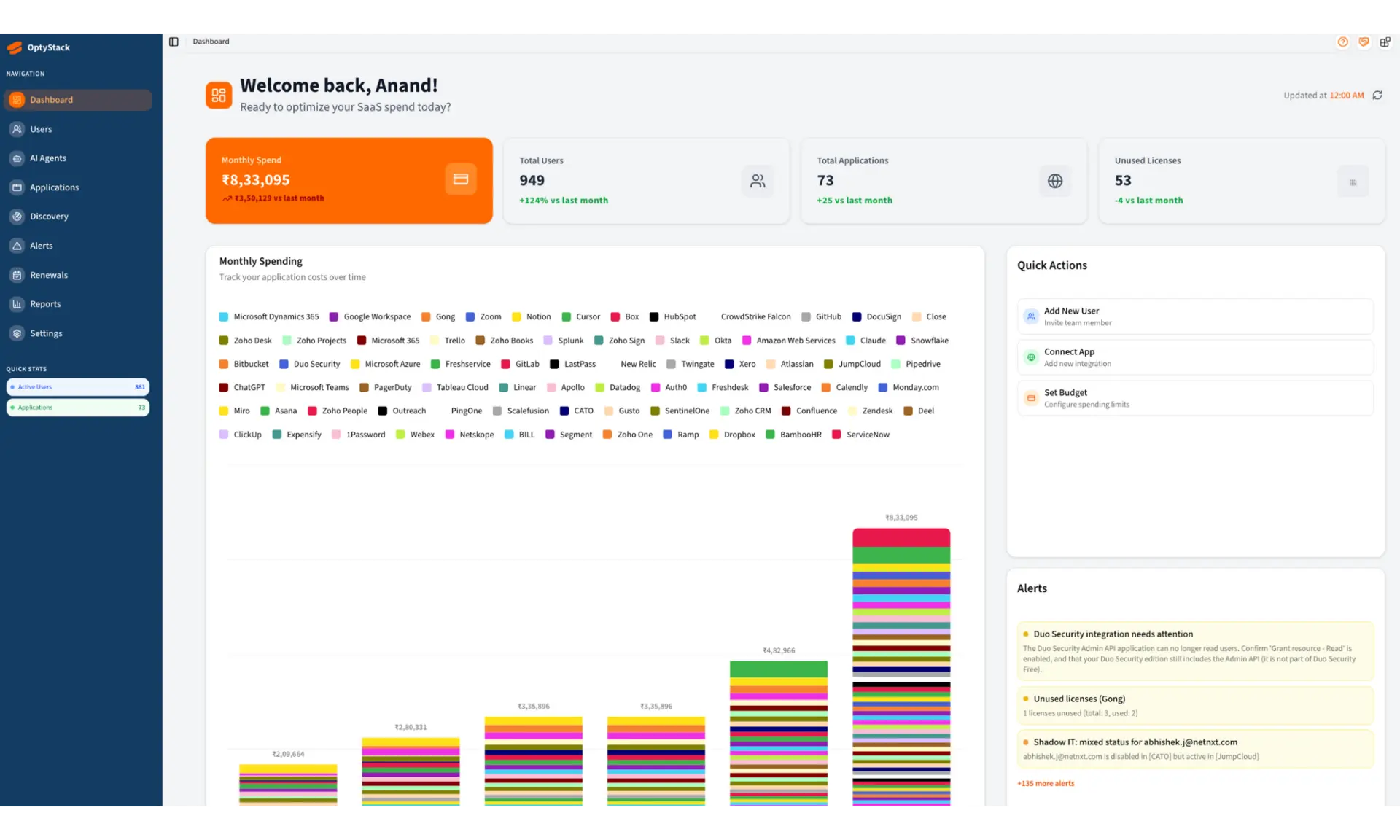
OptyStack gives IT, finance and RevOps teams one view of every SaaS application their company runs: who has access, what it costs, and whether it is actually being used.
Connecting Gong brings your Gong user roster into that view. OptyStack syncs every Gong user along with their permission profile, workspace and recent activity, so you can see who is set up in Gong, who holds which profile, and who is actively using it.
The integration is read only. OptyStack never creates, changes or removes anything in your Gong workspace, and never touches calls, recordings or transcripts.
Connecting Gong brings your Gong user roster into that view. OptyStack syncs every Gong user along with their permission profile, workspace and recent activity, so you can see who is set up in Gong, who holds which profile, and who is actively using it.
The integration is read only. OptyStack never creates, changes or removes anything in your Gong workspace, and never touches calls, recordings or transcripts.
Media
Features
Use Gong Data in OptyStack AI
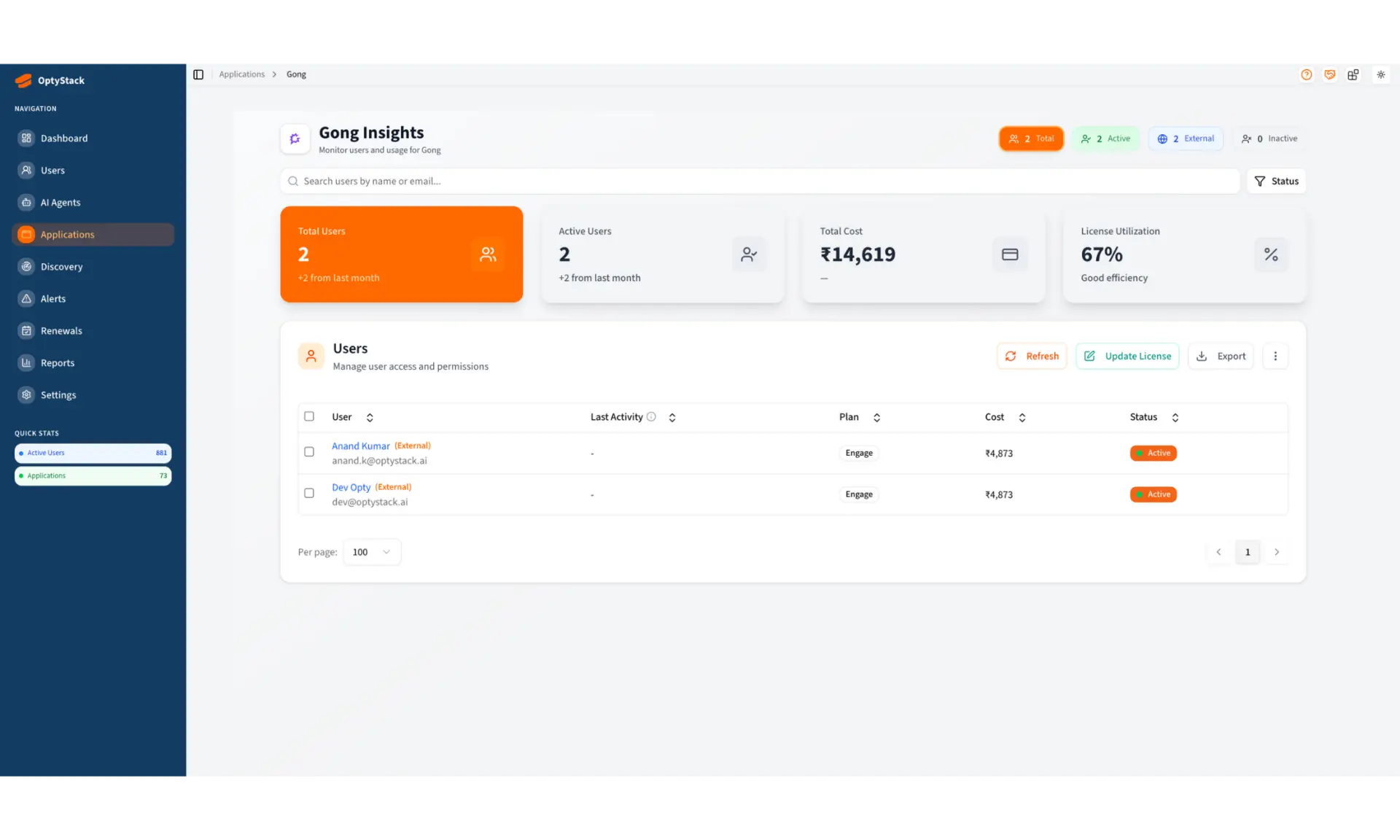
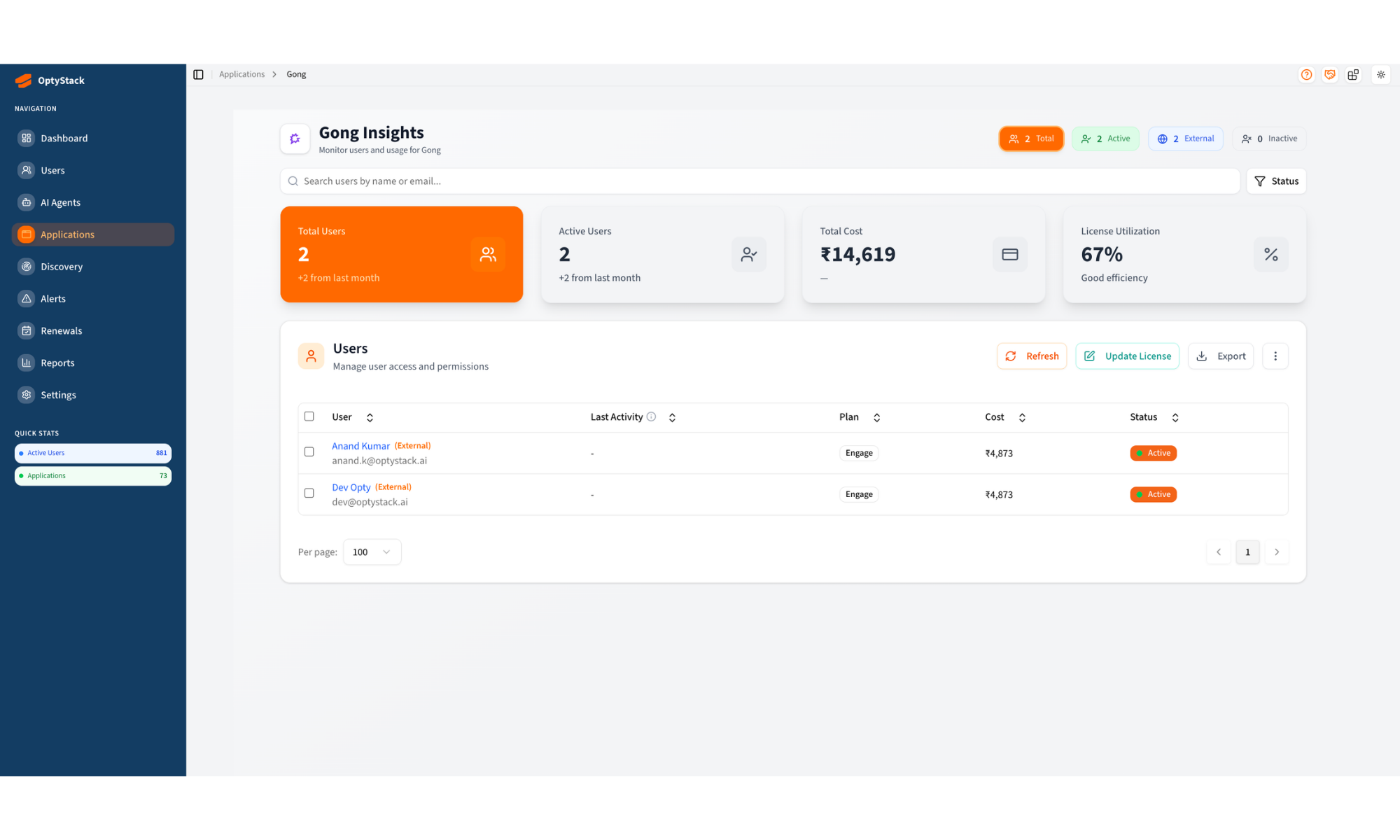
OptyStack reads your Gong user directory and shows it alongside every other application your company runs. For each Gong user you see their permission profile, workspace, account status and last activity, so you can tell at a glance who is active, who is sitting on a free Collaborator profile, and whose access should have been removed when they left.
The integration is read only. OptyStack does not create, change or remove anything in Gong, and does not access calls, recordings or transcripts.
The integration is read only. OptyStack does not create, change or remove anything in Gong, and does not access calls, recordings or transcripts.
Benefits
One roster, not twelve admin consoles
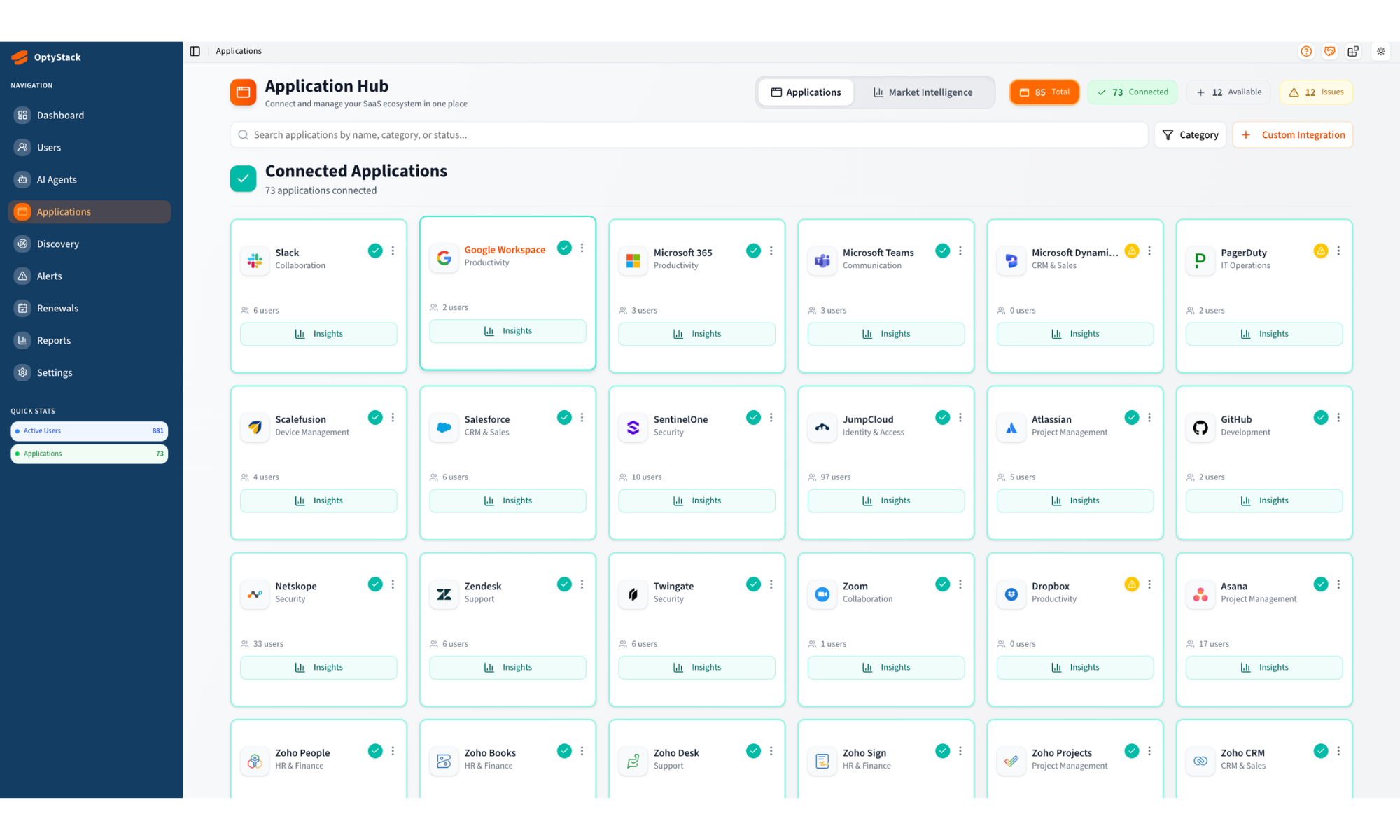
Gong sits alongside every other application your company runs, in the same table, with the same columns. No switching between admin panels to answer a question as simple as who has access to what.
Read only, by design
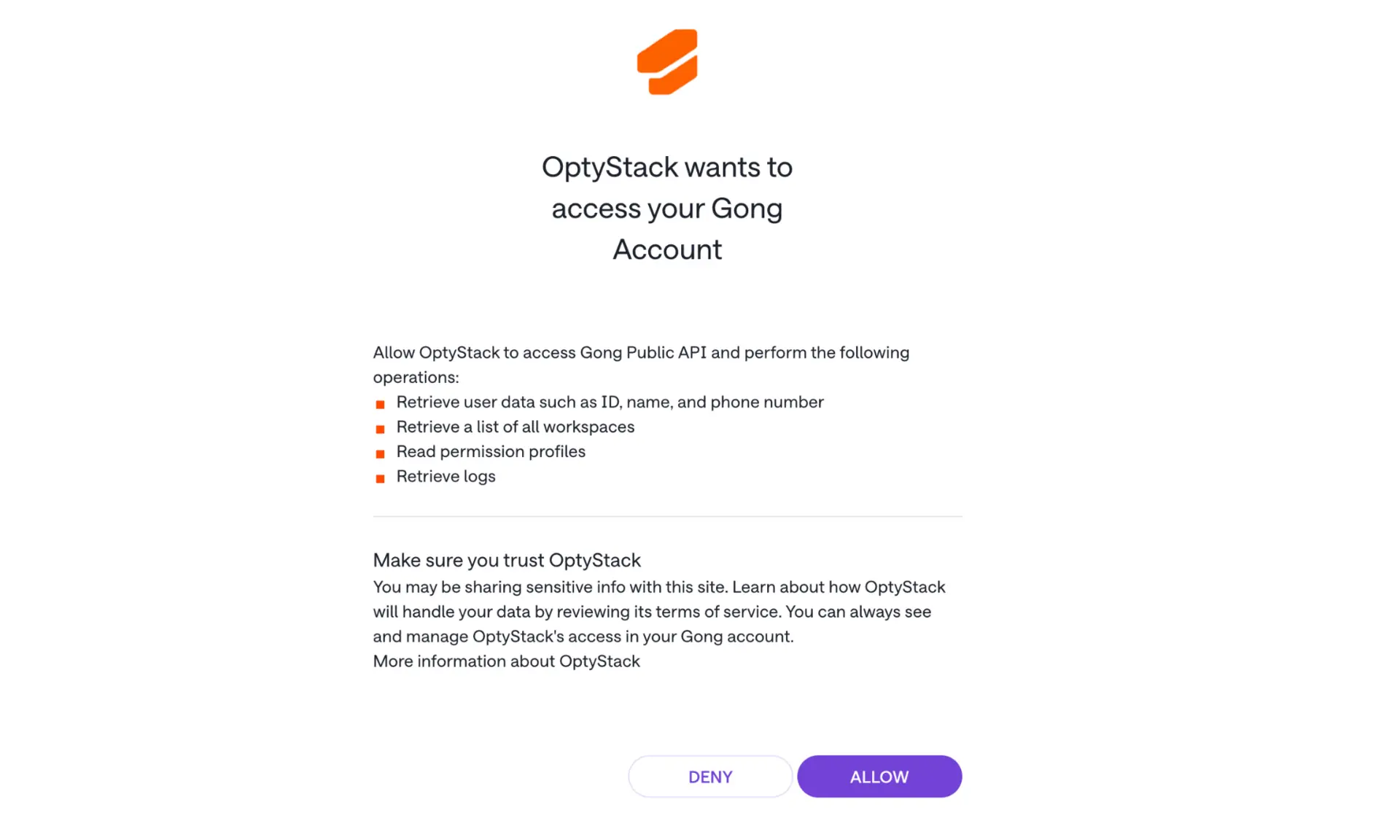
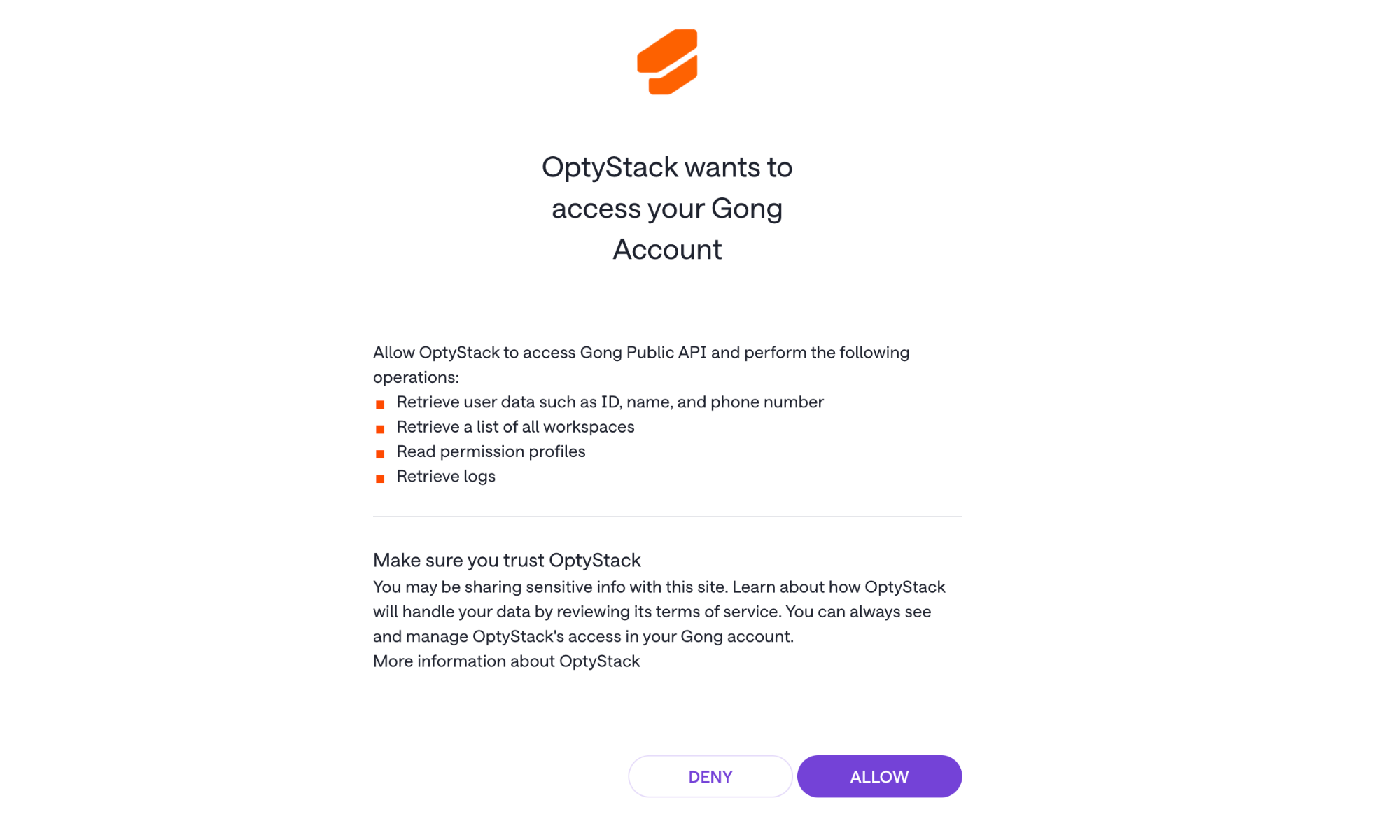
OptyStack requests four read-only permissions and nothing else. We never create, change or remove anything in your Gong workspace, and we have no access to calls, recordings or transcripts.
FAQ
Four things, all read only: your user list, your workspaces, your permission profiles, and the access log we use to work out when each person was last active. That is the full extent of it.
No. OptyStack requests read-only permissions only. It cannot create, edit, deactivate or delete Gong users, and it cannot modify permission profiles or any other Gong setting.
No. We request no call, recording or transcript permissions, so we have no technical ability to reach that data even if asked to.
A Gong technical administrator. Gong's authorisation screen is only available to that role, so a standard user cannot complete it. It is a one-time step per workspace.
Automatically every night, and on demand whenever you want a fresh sync from the Gong page in OptyStack.
Not exactly, and we would rather say so plainly. Gong's API does not expose a paid-seat flag, so OptyStack reports the number of active team members and shows each person's permission profile. That lets you see who is on the default Collaborator profile rather than a full one, but the figure will not always match a Gong invoice line for line.
Integration Diagrams
OptyStack reads your Gong user directory on a schedule and shows it alongside every other application your company runs.
Four read-only objects are read: users, workspaces, permission profiles and access logs. These become the user roster, each person's role and workspace, and their last activity date inside OptyStack.
No data flows the other way. OptyStack writes nothing back to Gong and has no access to calls, recordings or transcripts.
Four read-only objects are read: users, workspaces, permission profiles and access logs. These become the user roster, each person's role and workspace, and their last activity date inside OptyStack.
No data flows the other way. OptyStack writes nothing back to Gong and has no access to calls, recordings or transcripts.
Data
User Data
User Data

Data
User Data
User Data
Requirements
Included in every OptyStack plan
The Gong integration is available on any OptyStack plan at no additional cost. There is no higher tier to buy and no per-integration fee.
On the Gong side you need a Gong account with API access enabled.
On the Gong side you need a Gong account with API access enabled.
A Gong technical administrator must authorise the connection
Gong's authorisation screen is only available to a technical administrator, so a standard Gong user cannot complete the connection. If you are not one, ask whoever administers your Gong workspace to approve it.
This is a one-time step per workspace. Once approved, OptyStack keeps syncing without anyone needing to reauthorise.
This is a one-time step per workspace. Once approved, OptyStack keeps syncing without anyone needing to reauthorise.
Connect
Connecting takes about a minute.
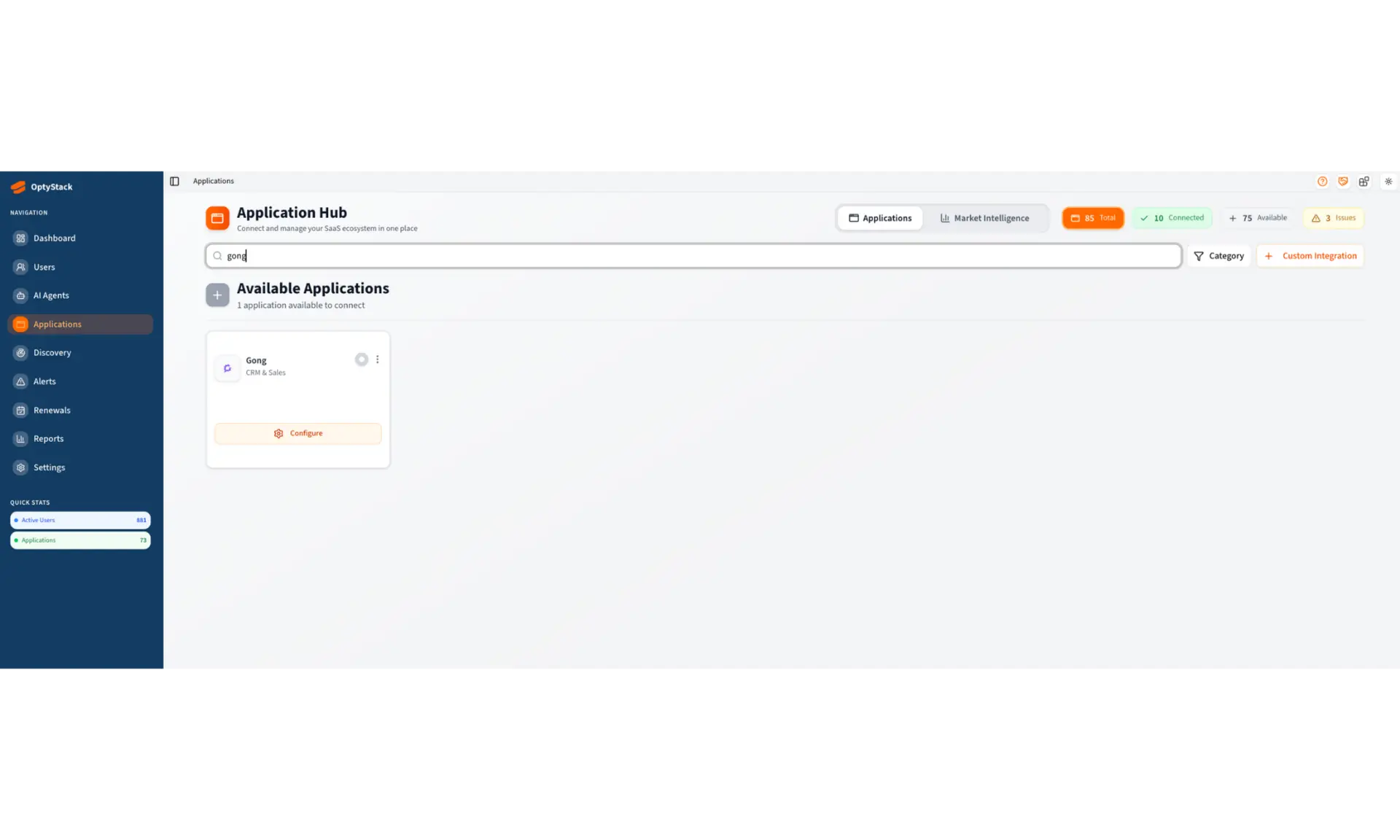
Sign in to OptyStack and open Applications.
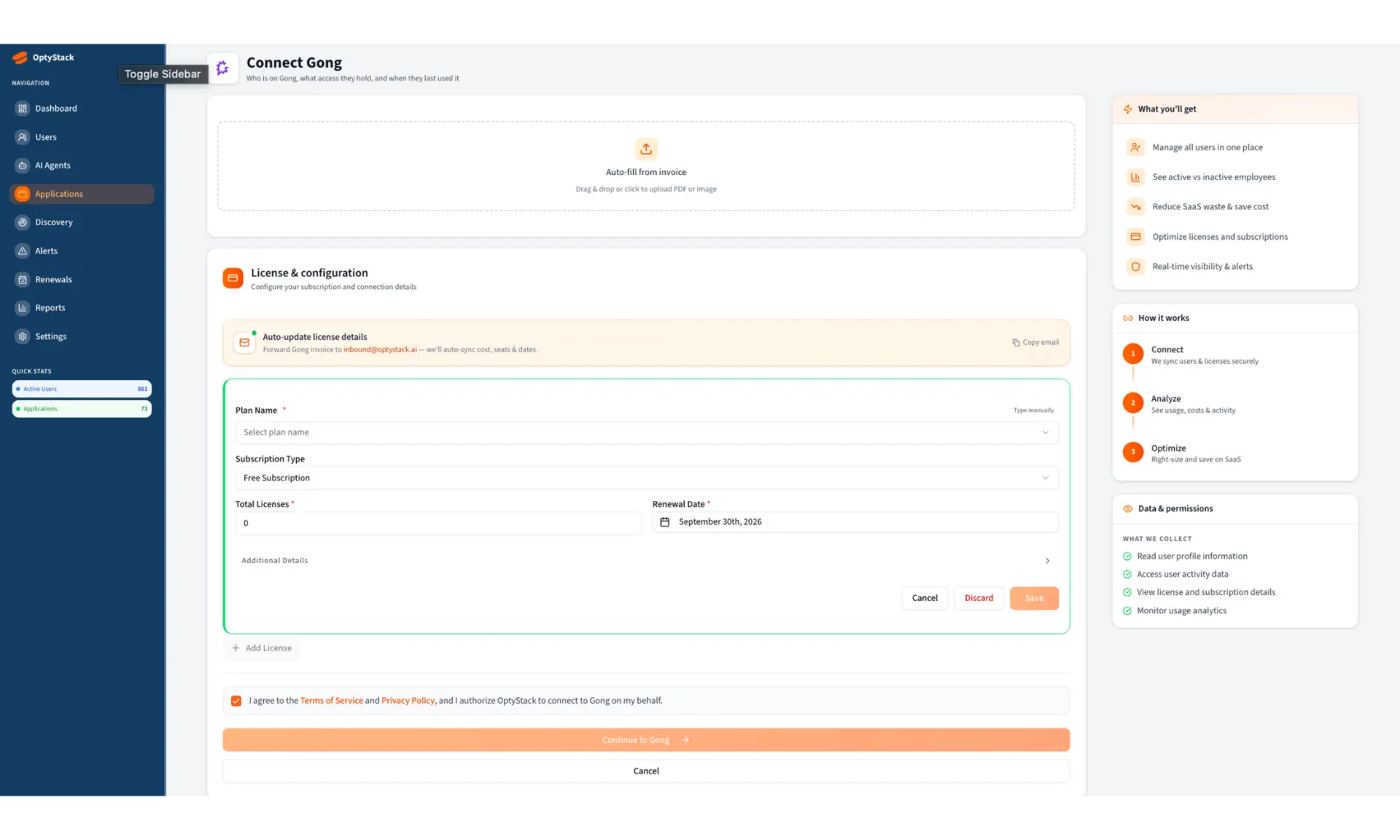
Find Gong and click Connect.
You will be sent to Gong to authorise OptyStack.
Review the four read-only permissions and approve.
You are returned to OptyStack and the first sync starts automatically.
A Gong technical administrator has to approve step 4. If you are not one, ask whoever administers your Gong workspace to complete the connection.
Sign in to OptyStack and open Applications.
Find Gong and click Connect.
You will be sent to Gong to authorise OptyStack.
Review the four read-only permissions and approve.
You are returned to OptyStack and the first sync starts automatically.
A Gong technical administrator has to approve step 4. If you are not one, ask whoever administers your Gong workspace to complete the connection.