






Import calls and leverage Gong Conversational Intelligence
Import calls and leverage Gong Conversational Intelligence
About
Call recording is an important sales tool. It provides a permanent record of customer interactions for reps to grow and learn from.
Ingest Salesloft calls and leverage Gong Conversational Intelligence.
Ingest Salesloft calls and leverage Gong Conversational Intelligence.
Media
Features

Import SalesLoft Calls
Gong transcribes call recordings from speech to text, turning them into actionable data and enabling teams to find specific calls with ease, search for keywords that were spoken, and benefit from rich conversational intelligence.
FAQ
The speaker separation for SalesLoft recordings is stereo.
This means audio is provided to Gong in multiple channels which ensures maximum accuracy for speaker identification in Gong.
This means audio is provided to Gong in multiple channels which ensures maximum accuracy for speaker identification in Gong.
Integration Diagrams
Data
Gong
Gong

Data
Salesloft Calls
Salesloft Calls
Connect
Because Salesloft utilizes Gong's integration with Salesforce, you need to make sure you're synced correctly with Salesforce as well.
Setup SalesLoft
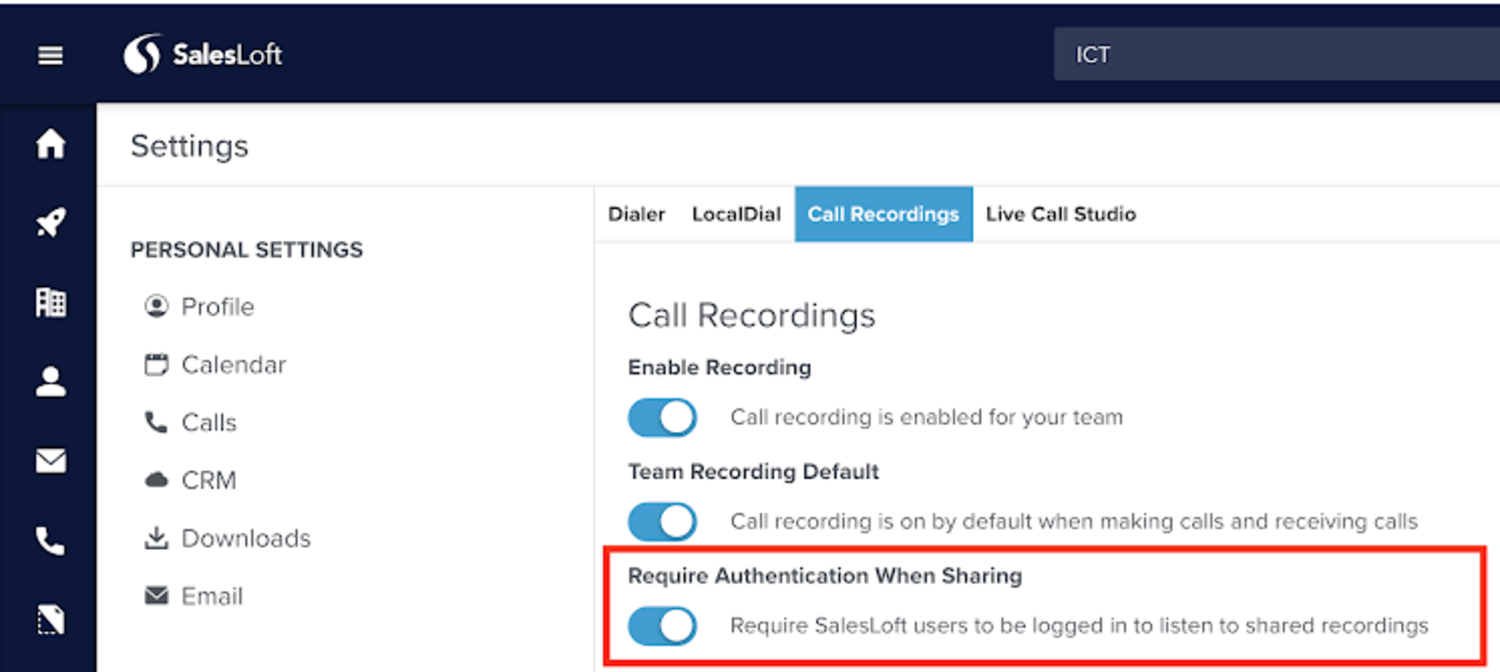
- In SalesLoft, confirm that you're recording your calls:
a. Go to the Settings screen.
b. On the left, under Communication, click Dialer.
c. Click the Call Recordings tab.
d. Make sure Enable Recording is on. We recommend turning Team Recording Default on also. - Map the Call Duration to Salesforce:
a. Go to the Settings screen.
b. On the left, under Communication, click Dialer.
c. On the left, under Data, click Field Configuration.
d. Click the Activity Fields tab.
e. In the Call Duration field, on the right, click More (...) and select Edit Mapping.
f. On the Edit Field screen, make sure Call Duration appears in both fields, and click Save.
Setup in Salesforce
After you complete the SalesLoft setup, you need to go into your Salesforce and surface the Call Duration field on a task by following these steps. You must be a Salesforce admin to perform these steps.
- Go to your Setup page.
- On the left, under Build, search for and click Task Page Layouts.
- On the right, under Action, click Edit.
- Locate the Call Duration field and drag it to the Additional Information section on the layout.
- Click Save.
Setup in Gong
1. Enable this integration from Gong Company Settings > Telephony Systems