






Identify insights from your call transcripts to uncover customer feedback and sales intelligence.
Squad is an AI-driven product discovery, strategy, and roadmapping tool for building user-centric products. Align your team and ship outcomes faster.
About
Squad brings together business goals and decision making data from many sources including customer feedback to create alignment and build more strategically.
This integration allows Squad access to your call transcripts in Gong, to automatically identify insights from those conversations.
Media
Features

Use Gong Data in Squad AI
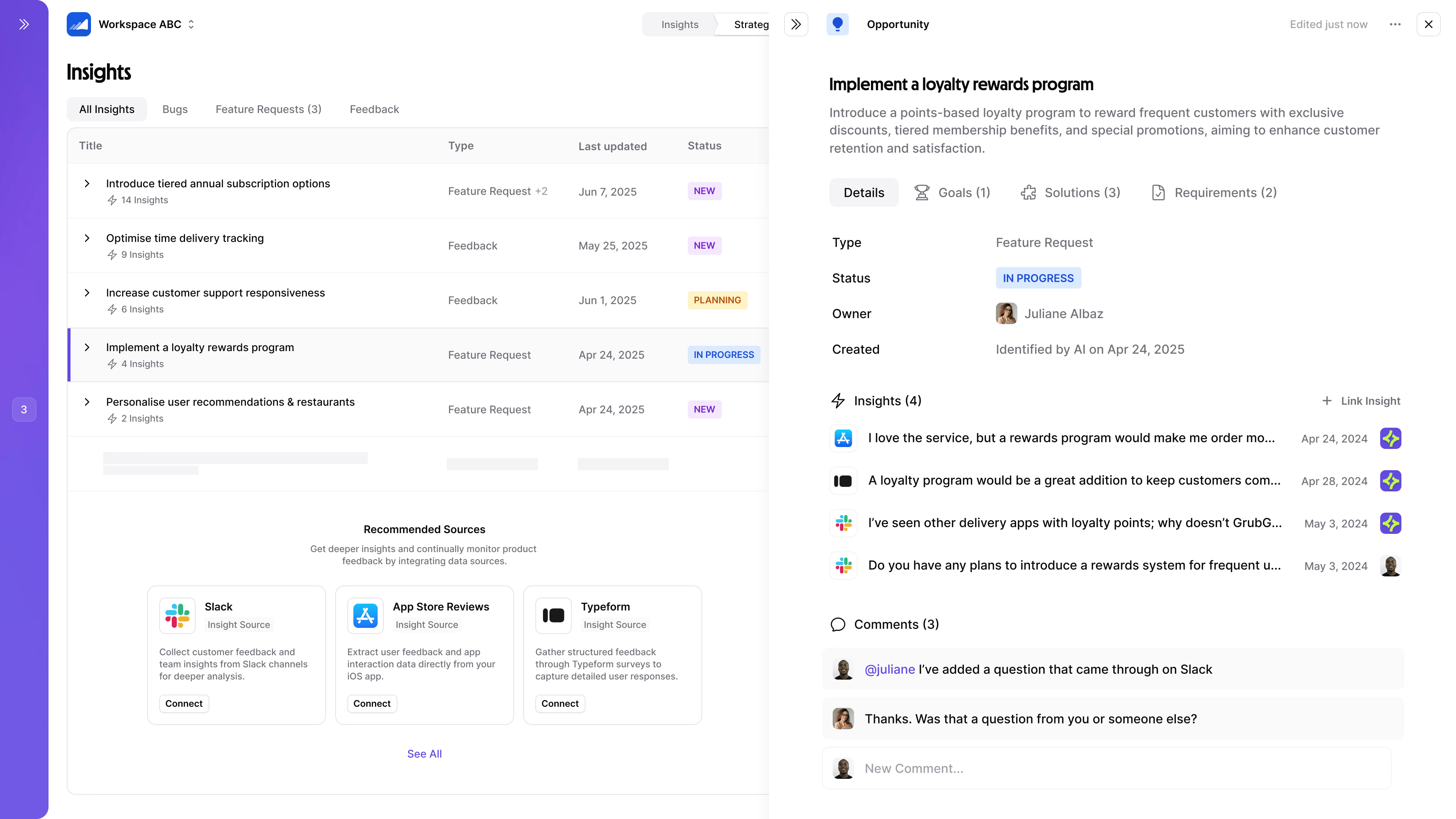
Squad's team of AI agents will analyze your call transcripts in the context of your business data, extract insights, and identify high value opportunities - enabling you to build a more strategic product roadmap around business and customer/prospect needs.
Benefits

Automatic transcript analysis
Once you've connected your Gong calls to Squad, each time a transcript is ready Squad will review it automatically - saving you and your team time to focus on strategy, not admin.
FAQ
Integration Diagrams
Data
Call Transcripts
Call Transcripts

Data
Feedback & Insights
Feedback & Insights
Requirements
Authenticating User Requirements
To authenticate this integration for the first time, a user must be a Gong Tech Admin and have Admin permissions in Squad AI
Subscriptions Required
Must have a Squad AI account with a workspace created. Any account tier is suitable.
Must have Gong subscription.
Must have Gong subscription.
Connect
1. Connect your Gong workspace
Go to Workspace dropdown → Integrations in Squad
- Find Gong and click Connect
- Complete the OAuth flow to allow Squad to access your Gong workspace
2. Create a webhook rule in Gong
First, copy the webhook URL shown in Squad
- In Gong, go to Admin Settings
- Under Ecosystem, click Automation rules
- Click + New Rule in the top right
- Choose New call as the trigger and add filters if needed
- Paste the Squad webhook URL in the URL field
- Under Select authentication method, choose Signed JWT header
- Set the Rule status to Enabled
For detailed instructions, see Gong’s webhook documentation.
3. Save the public key
- Click Show public key next to the Signed JWT header option
- Copy the public key and paste it into Squad to complete the setup
4. Monitor insights and opportunities