





Share Interactive Demos with Gong + Storylane
Storylane helps companies build and share interactive product demos with their prospects in 10 mins.
About
Storylane is the leading demo experience platform, helping B2B revenue teams engage prospects with interactive, personalized demos at scale.
This integration empowers Gong Engage users to easily browse and embed Storylane demos directly inside Gong emails and templates, making it simple to showcase your product at the exact moment of buyer interest.
With Gong’s engagement tracking and Storylane’s demo automation, revenue teams can convert more prospects, shorten sales cycles, and drive adoption with less effort.
Media
Features

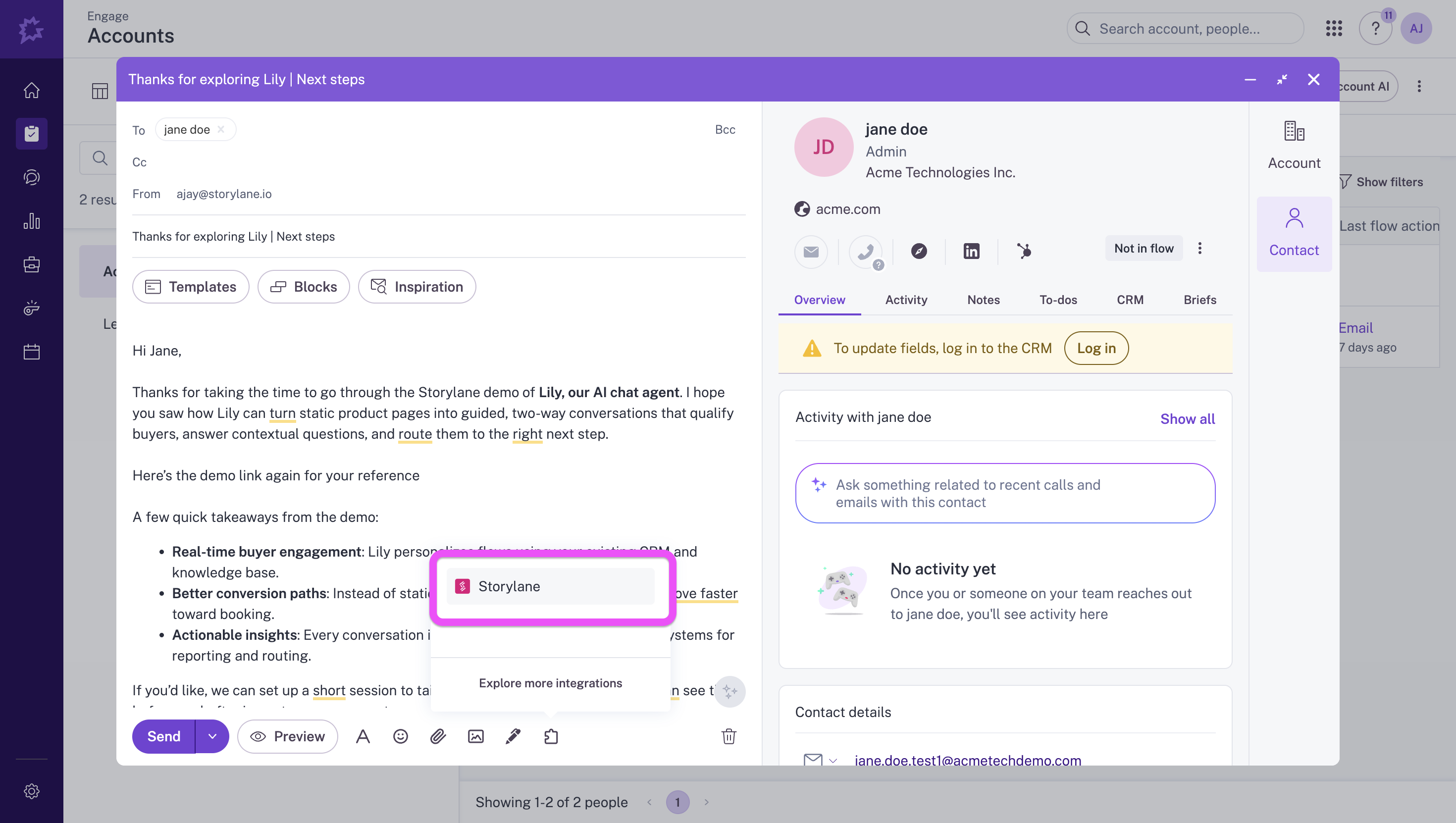
Show Storylane in Gong Engage Emails
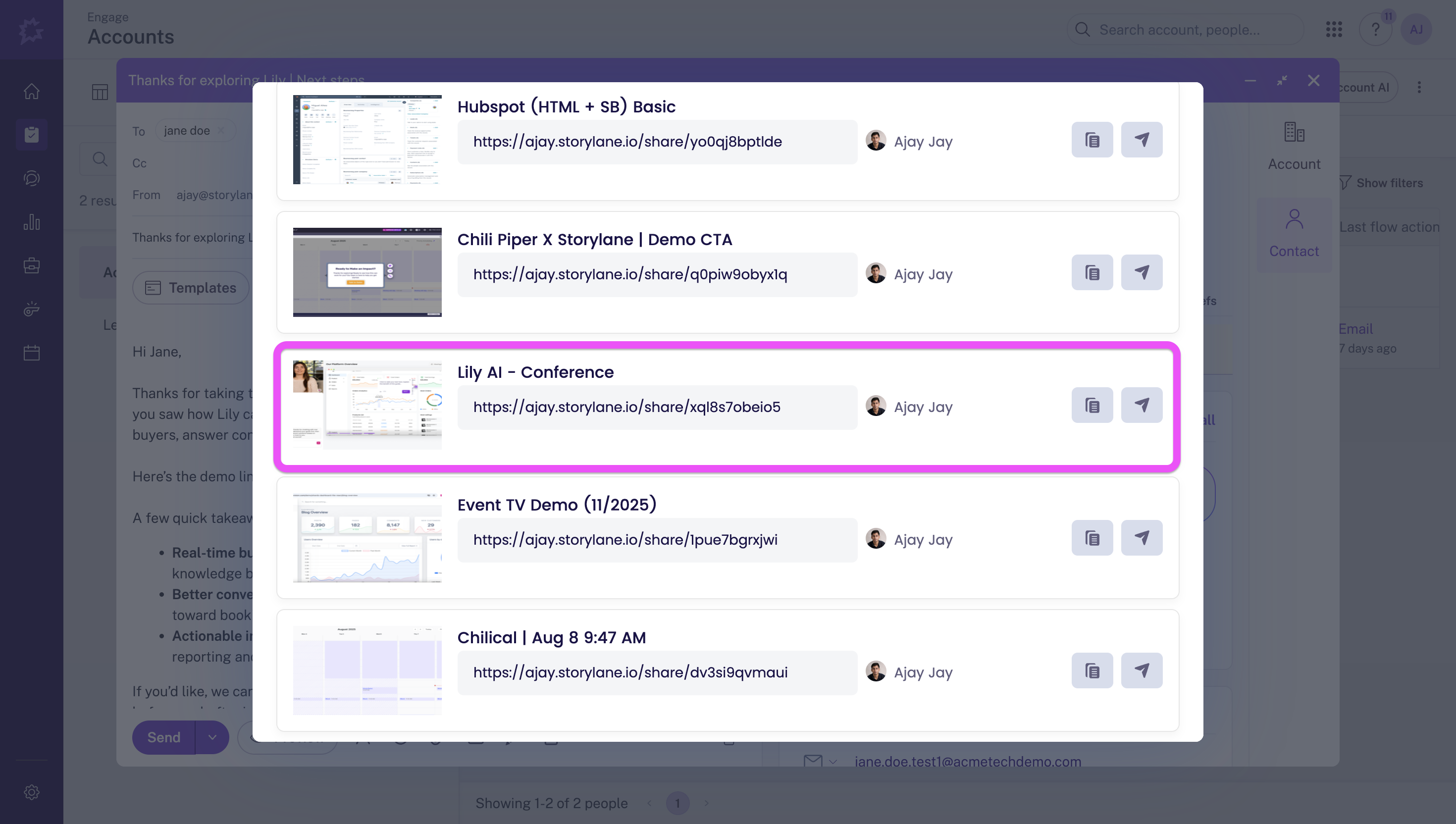
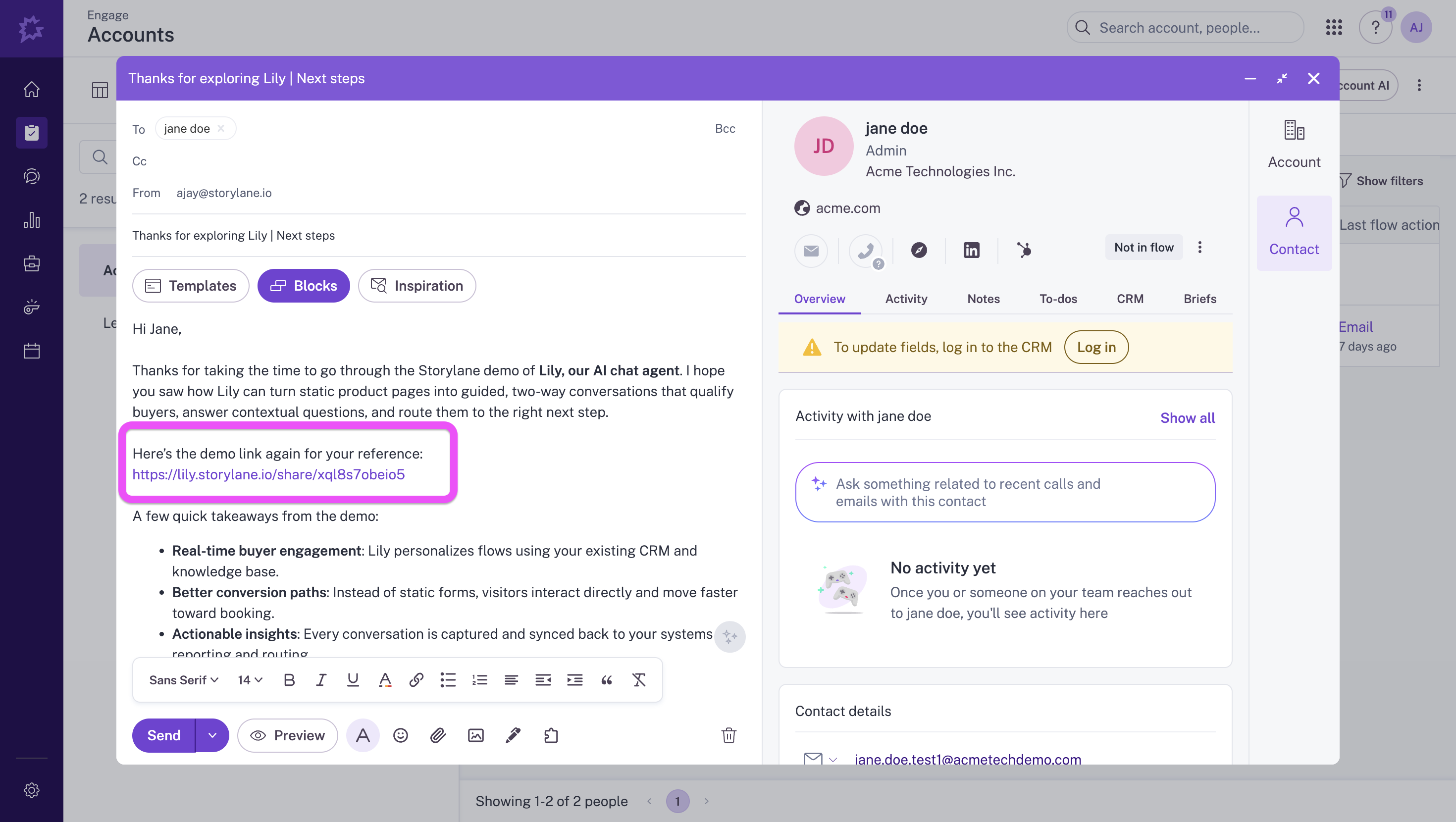
Revenue teams can browse and insert interactive Storylane demo links directly from the Gong Engage Email Composer, ensuring prospects see product value without leaving their inbox

Add Storylane Demos to Gong Workflows
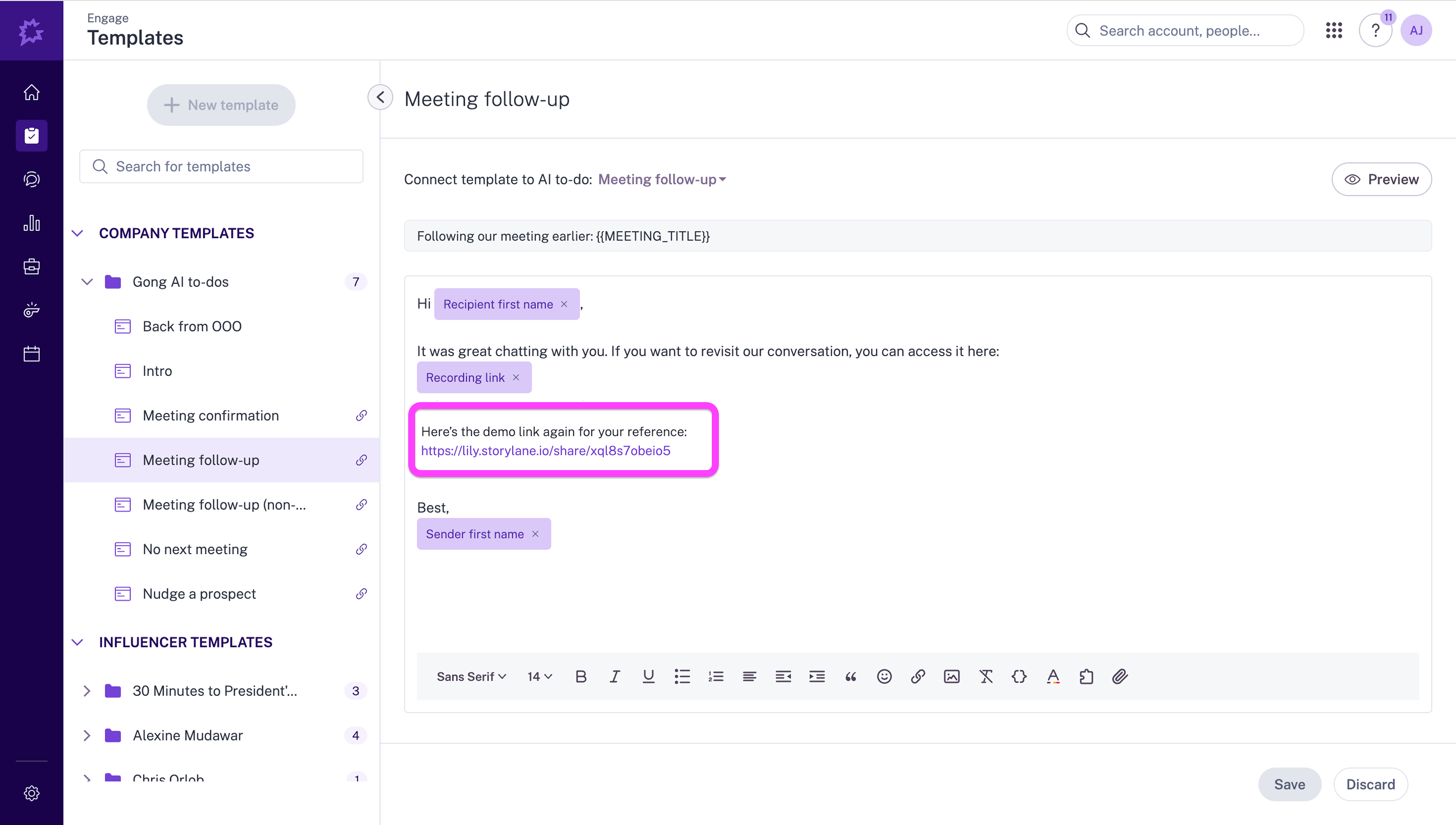
From Gong templates, users can open the Storylane app and embed pre-approved demo links, standardizing messaging while keeping outreach highly engaging at scale
Benefits

Personalized Engagement at Scale
Every Gong email and template can include tailored Storylane demos, helping prospects self-educate and move faster through the buying journey.

Accelerate Sales Cycles
By embedding Storylane demos at the first touch, revenue teams reduce time-to-value and improve conversion rates.

Seamless Buyer Experience
Prospects experience a frictionless flow: from Gong outreach → Storylane demo → Gong follow-up.
FAQ
Please find the Gong x Storylane integration in this article
https://docs.storylane.io/integrations/integrations/gong
https://docs.storylane.io/integrations/integrations/gong
Integration Diagrams
Data
Gong Emails & Templates
Gong Emails & Templates

Data
Storylane Demo Links
Storylane Demo Links
Requirements
Authenticating User Requirements
- Must be logged into Gong as Admin
- Access to install Storylane from the Gong Marketplace
Subscriptions Required
• Must have Storylane active subscription
• Must have Gong active subscription
• Must have Gong active subscription
Connect
You can now install the Storylane app directly from the Gong Marketplace.
Setup
Adding Demos to Individual Emails
- Navigate to contacts → Engage > Accounts
- Select target → Choose account and contact to email
- Compose email → Contact auto-populates in "To:" field
- Access Storylane → Click Integrations icon > Storylane in composer
- Add demo → Browse and embed demo link in email body
Adding Demos to Email Templates
- Open templates → Engage > Templates
- Select template → Choose template to modify
- Edit email step → Select specific email in template sequence
- Access Storylane → Click Integrations icon > Storylane in composer
- Add demo → Browse and embed demo link in template